
Importing Balances from Financial Consolidation & Close to Account Reconciliation
Maximizing the Value of the Unified Oracle Cloud EPM Platform
Part 1: Streamlining Your Financial Close
As businesses increasingly aim to optimize their financial processes, the option to bring Financial Consolidation and Close data into Account Reconciliation offers a compelling opportunity. Connecting these business processes can drive efficiency, accuracy, and streamlined workflows. Below, we explore the benefits, use cases, and considerations involved in bringing balances from Financial Consolidation & Close into Account Reconciliation.
Note: This guide does not cover setting up BIP reports in Oracle ERP Cloud. It only explains how to connect a BIP report to Account Reconciliation to load balances for reconciliations.
Benefits
Improved data consistency
Ensures alignment between Financial Consolidation & Close, Account Reconciliation, and ERP systems, creating a single source of truth and a reliable foundation for reconciliation processes.
Process automation
Streamlines and automates processes by minimizing manual intervention through automated data transfers, saving time and reducing the risk of human errors.
Enhanced accuracy
Reduces the potential for manual errors during reconciliation and validation processes, which improves overall data integrity.
Centralized monitoring and reporting
Provides a unified view of reconciliations, including both period-end and system data reconciliations, enhancing visibility and control.
Use Cases
Reconciling numbers loaded into Financial Consolidation & Close with ERP balances
Reconciliations can be set up in balance comparison formats, and accounts auto-reconcile when balances match, streamlining the process. However, this approach may result in an additional set of reconciliations to manage.
Reconciling using post-consolidation amounts
Companies often prefer reconciling to consolidated figures, as these balances include eliminations, ownership, and equity pickup values, providing a more comprehensive view.
Analyzing periodic variances in Financial Consolidation & Close data
Variance analysis reconciliations can be used to assess monthly, quarterly, or yearly changes. These analyses support management discussion and analysis (MD&A) or other required financial documentation through comments or alerts.
Monitoring and explaining Multi-GAAP adjustments
Reconciliations can be created to monitor multi-GAAP adjustments by comparing local GAAP balances with IFRS (or other reporting standards) adjustments in Financial Consolidation & Close. This enables finance teams to validate adjustments, ensure compliance, and maintain transparency across financial statements. Additionally, variance analysis can be leveraged to identify discrepancies between GAAP frameworks and address them proactively.
Key Considerations
Data Granularity: Detailed vs Summarized Data
- Detailed (or level 0) balances: Recommended when sourcing data from Financial Consolidation & Close rather than directly from the GL to populate balances in the monthly reconciliation process.
- Summarized data: Suitable for variance analysis. Data is often aligned with financial statement line items to minimize the number of additional reconciliations created for variance analysis.
Currency Level Selection
Parent Currency: Preferred for variance analysis, as it aligns with the currency used for consolidated financial reporting purposes in Financial Consolidation & Close.
Entity Currency: Useful for reconciliations at the local entity currency level to meet functional requirements.
Post Consolidated vs Level 0 Data
Post-consolidated data: Ideal for variance analysis or comparisons with reported financials, as it includes eliminations, ownership calculations, and equity pickup.
Level 0 data: Suitable for validating base data between Financial Consolidation & Close and the ERP or as mentioned previously, loading period end balances for the monthly reconciliation process.
Custom Dimensions
Reconciliations are typically performed at a higher level than the data loaded into Financial Consolidation & Close. When integrating additional dimensions into Account Reconciliation, consider loading custom dimensions as attributes or adding additional profile segments if needed to capture necessary details.
Oracle FCC and ARCS Integration Setup
Data Integration Setup
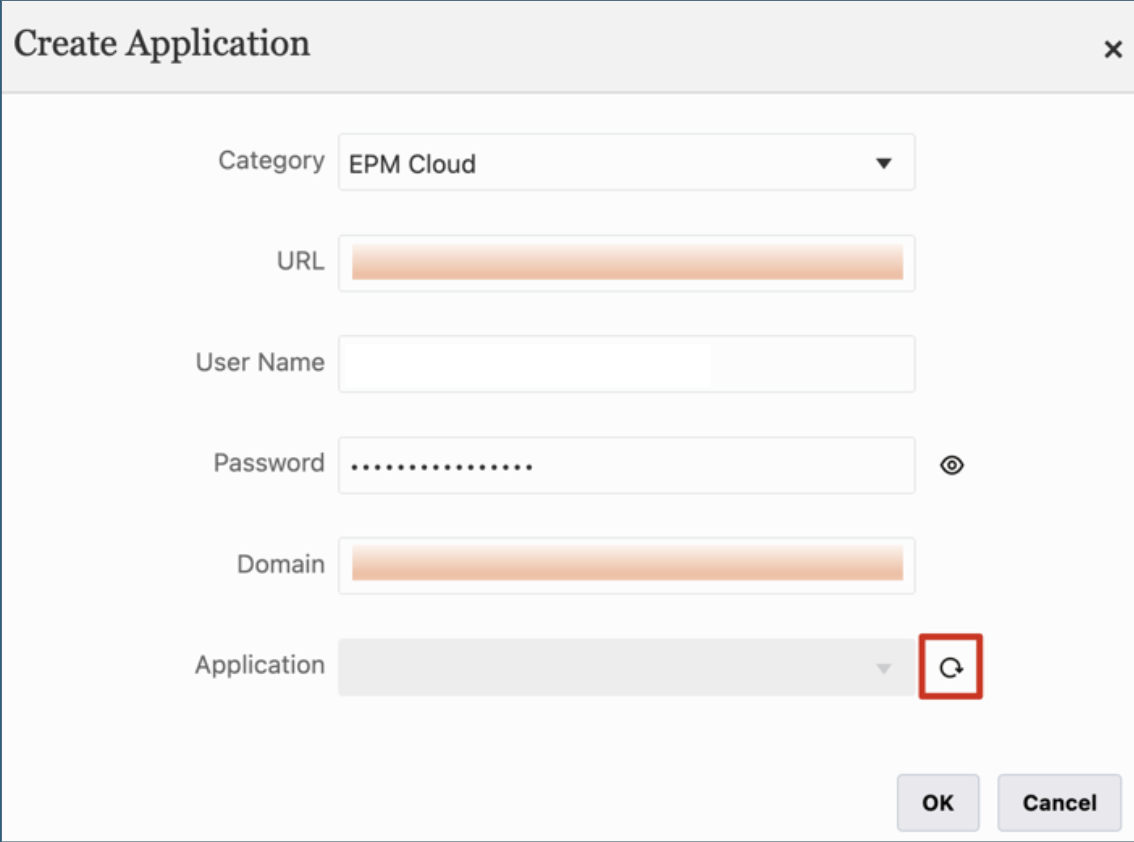
The first step to create the integration with Financial Consolidation & Close is to set up the connection by navigating to Application > Data Exchange > Actions > Applications. Click the + icon to add a new application.
The application category is EPM Cloud. Enter the required information into the fields for URL, User Name, Password, and Domain. Once this information is entered, click the Refresh icon next to Application.
Note: It is considered best practice to create a dedicated system administrator account (username and password) specifically for integrations and automated connections, rather than using an individual named user.
Create a Data Integration
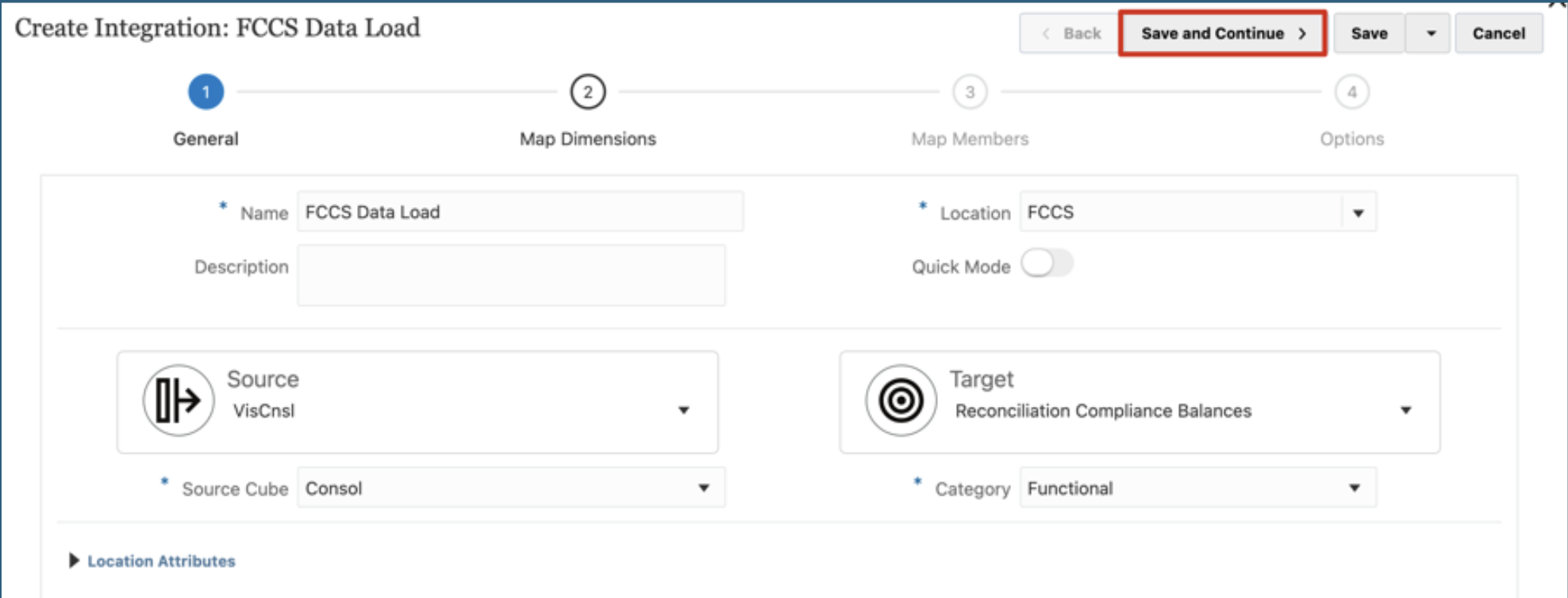
To create the integration, navigate to Application > Data Exchange and click the + icon to add a new integration.
Enter a Name and enter or select a Location. If a new location is created, the source and target must be defined. When the integration is saved, the system creates the location automatically. If an existing location is selected, the system populates the source and target automatically and the details cannot be changed.
Next, choose the appropriate Category for the integration. The selected category determines which currency bucket the data will be loaded into for the reconciliations.
After entering or selecting all required options, click Save and Continue to proceed.
Map Dimensions
In the next screen, source system (Financial Consolidation & Close) members must be mapped or translated to their corresponding values in the target system (Account Reconciliation). Proper mapping ensures that data is correctly categorized and available for reconciliation purposes.
The first two options, Import Format and Delimiter, typically do not require any adjustments and should be left as the default unless specific requirements dictate otherwise.
For each Account Reconciliation dimension, use the Source Dimension dropdown to select the corresponding Financial Consolidation & Close dimension. This step aligns data between the systems, ensuring accurate transformation and processing. Additionally, source or target expressions can be applied to manipulate data as needed – such as adding constants, applying factors, or implementing zero suppression.
Commonly used source expressions include:
- Delimiter (e.g., “-”) – Helps concatenate multiple fields into the Account ID.
- Factor (e.g., 100, 1000) – Multiplies the source value by a defined amount.
- NZP – Ensures that zero values are included in the data load, which is crucial for reconciling accounts that may have zero balances.
To add a source or target expression, click the gear icon next to the dimension row and select the desired expression. This provides flexibility in handling data, such as concatenating fields, applying conditional logic, or formatting values to meet business requirements.
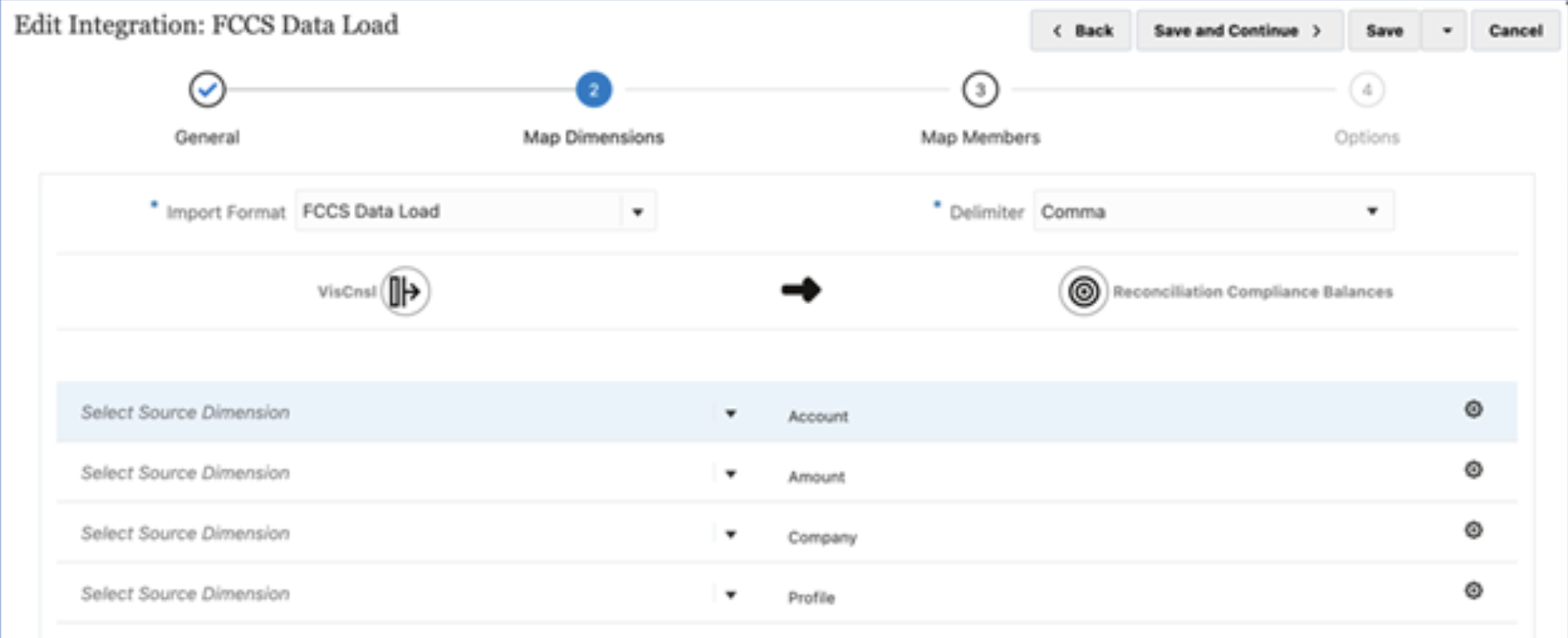
When the integration is initially created, the mapping table includes only the profile segments, source system, and a single profile row. However, to fully support the reconciliation process, additional rows are required, including a currency row and additional profile rows to construct the Account ID.
Additional rows can also be added to include dimensions from Financial Consolidation & Close that will only be used for research during the reconciliation process.
To add these additional rows, click the gear icon and select the appropriate option:
- Add Currency – Adds a currency row to facilitate multi-currency reconciliations.
- Add Attribute – Adds attribute rows to store supplemental details for reconciliation.
- Add Dimension Row > Profile – Adds extra profile rows to help define complex Account IDs.
In most cases, the Account ID is constructed using multiple profile rows. For example, if the Account ID follows the format Entity-Account, it would require three profile rows to map each segment correctly. The sequence of profile rows should always align with the defined profile segment order to ensure data consistency and accuracy.
Refer to the provided screenshot for an example of how to properly structure profile rows to meet reconciliation requirements.
If additional dimension data is needed but is not configured as profile segments, consider adding these dimensions as attributes using the Map Dimensions option.
For example, if an Account Reconciliation application is set up with profile segments for Company and Account, but additional fields like Product and Intercompany are required to support reconciliations, these fields can be added as attributes in the data load. The values will then be displayed when an end user clicks the Ending Balance link in a reconciliation.
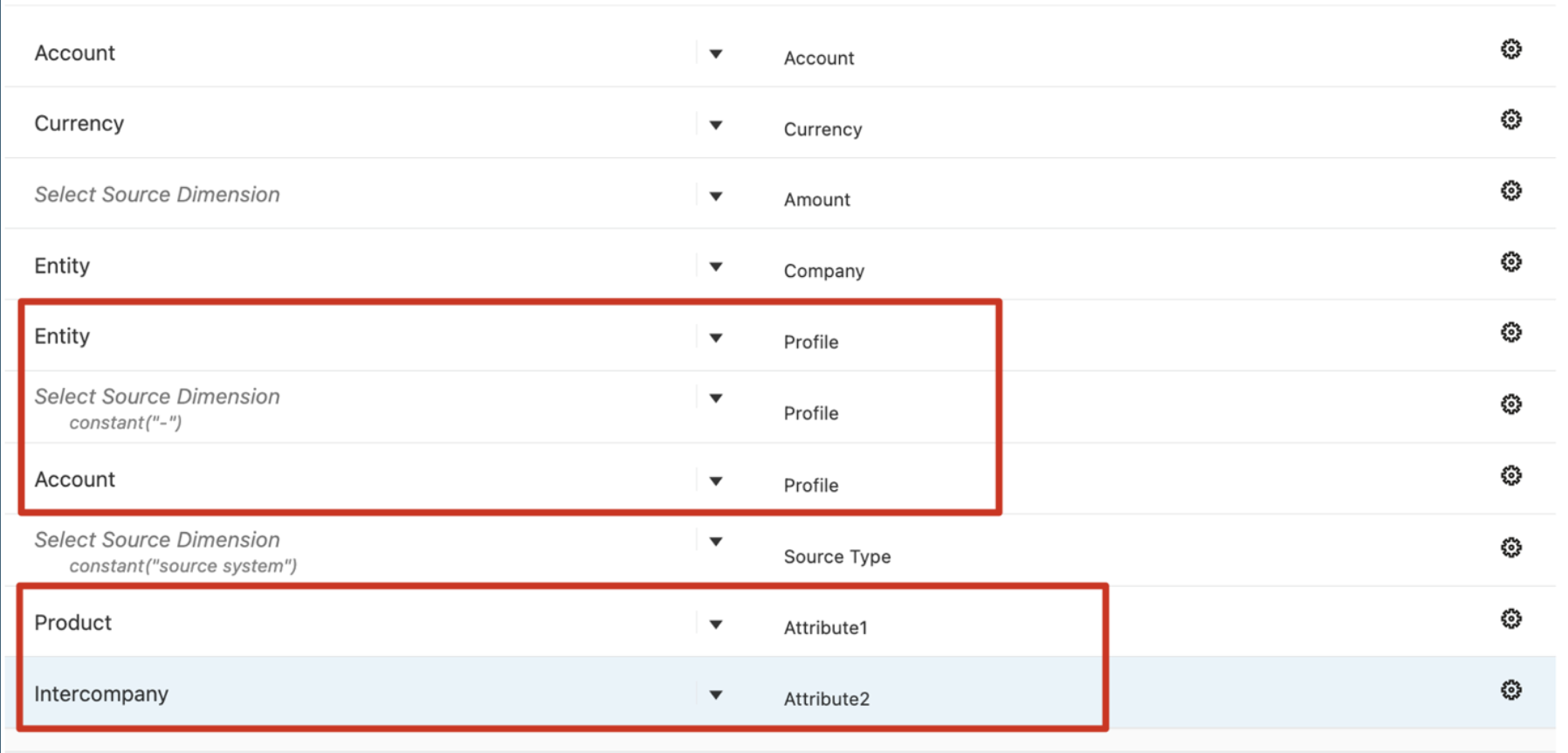
Note: Adding extra data fields to the integration increases the amount of information displayed in the Ending Balances window. Ensure that these fields are necessary and provide meaningful value to the reconciliation process. Adding too many attributes can lead to an overwhelming amount of data, especially if the number of data lines supporting a balance grows significantly.
Select Options
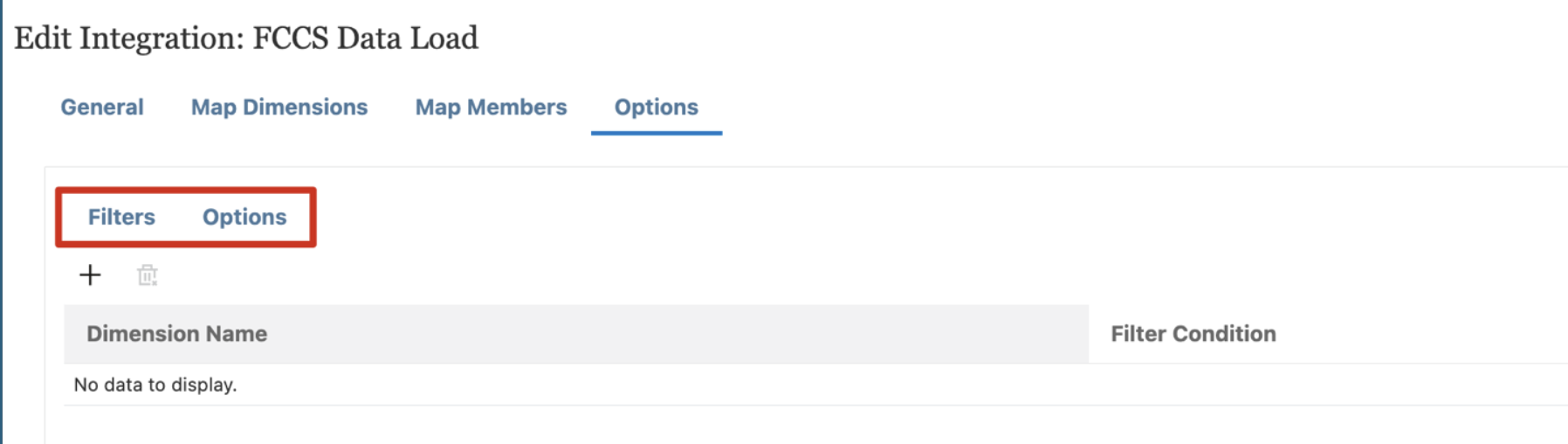
The Options screen in the data integration setup consists of two tabs: Filters and Options.
Filters determine the dimensions and member selections that will be extracted.
Options define additional parameters that control how the data is processed and transferred.
Filters must be defined for each dimension in the Financial Consolidation & Close application, regardless of whether they will be mapped as profile segments in Account Reconciliation. Proper filter setup ensures that the correct data is extracted and prevents missing or incomplete records in Account Reconciliation.
Filters can be applied at different hierarchy levels, such as:
- Specific Member – Pulls data for a particular member in the hierarchy.
- Level 0 (Base Level Members) – Includes only bottom-level members, typically used for granular or detailed data.
- Parent-Child or Ancestor Relationships – Selects data based on defined hierarchical relationships within a Financial Consolidation & Close dimension hierarchy.
To create filters, click the + icon to add a new filter. Select a dimension from the dropdown list. In the Filter Condition column, click the Select icon to define the condition. Repeat these steps for the remaining source dimensions to ensure full data coverage.
Note: Failing to define a filter for a required dimension may result in incomplete or inaccurate data being loaded into Account Reconciliation, which can impact the reconciliation process.
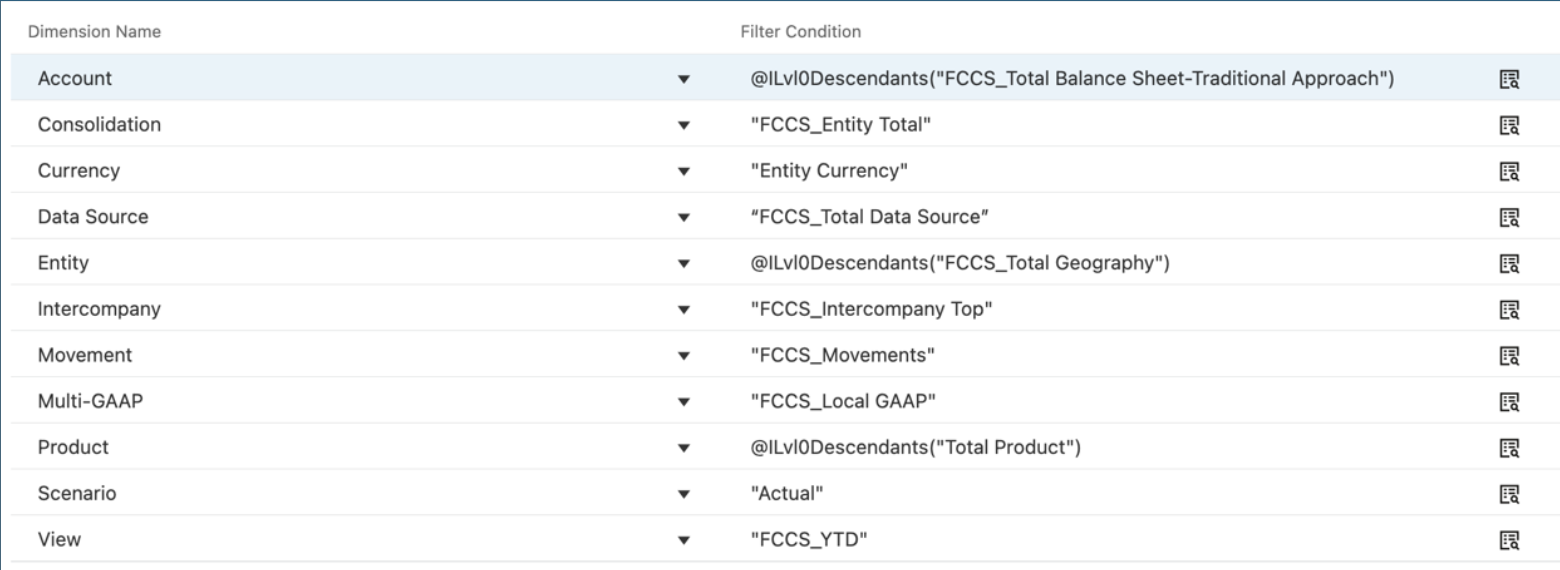
Once all filters are configured, proceed to the Options tab to fine-tune additional settings that control data behavior during the load process.
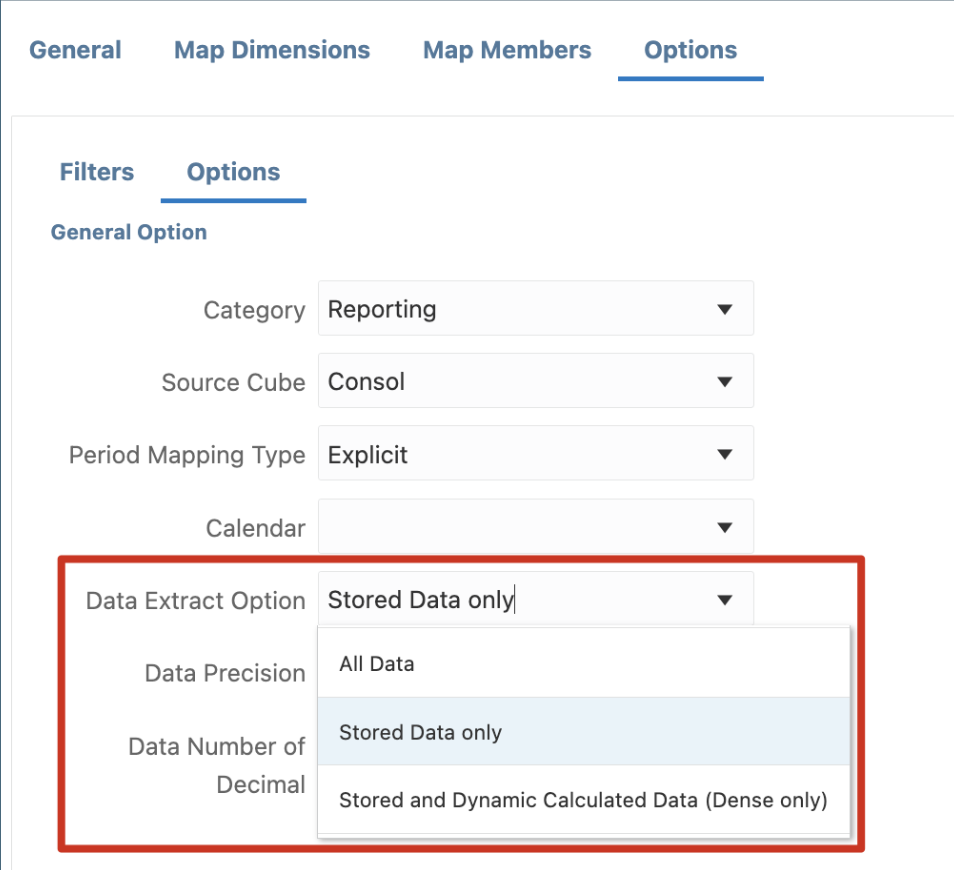
Most settings in the Options tab can be left at their default values. However, one key setting to consider is the Data Extract Option, which determines how data is retrieved from Financial Consolidation & Close. There are three available choices:
- All Data – Extracts both stored and dynamically calculated data for both Dense and Sparse dimensions.
- Stored Data Only – Extracts only stored data.
- Stored and Dynamic Calculated Data – Extracts stored and dynamically calculated values for Dense dimensions only.
The appropriate selection depends on the filtered data and how Financial Consolidation & Close dimensions are configured (Dense/Sparse).
If the integration requires pulling parent members or calculated data, the best practice is to select All Data to ensure that all relevant values are captured accurately, including dynamically calculated values at parent levels.
Map Members
While most dimensions, such as Account to Account or Entity to Entity, can be mapped directly, an exception exists for Currency mapping.
In Financial Consolidation & Close, specific currencies are assigned to entities, while the currency dimension includes Entity Currency, Parent Currency, and various reporting currencies. As a result, transferring data from the Currency dimension in Financial Consolidation & Close to Account Reconciliation will not align properly. To address this, a SQL script is required within the Source Type mapping to ensure the correct currency value is used.
When creating SQL scripts in Account Reconciliation. It is important to know the User Defined (or UD values) for each of the dimensions. The UD values can be found in the Reconciliation Compliance Balances application Data Exchange.
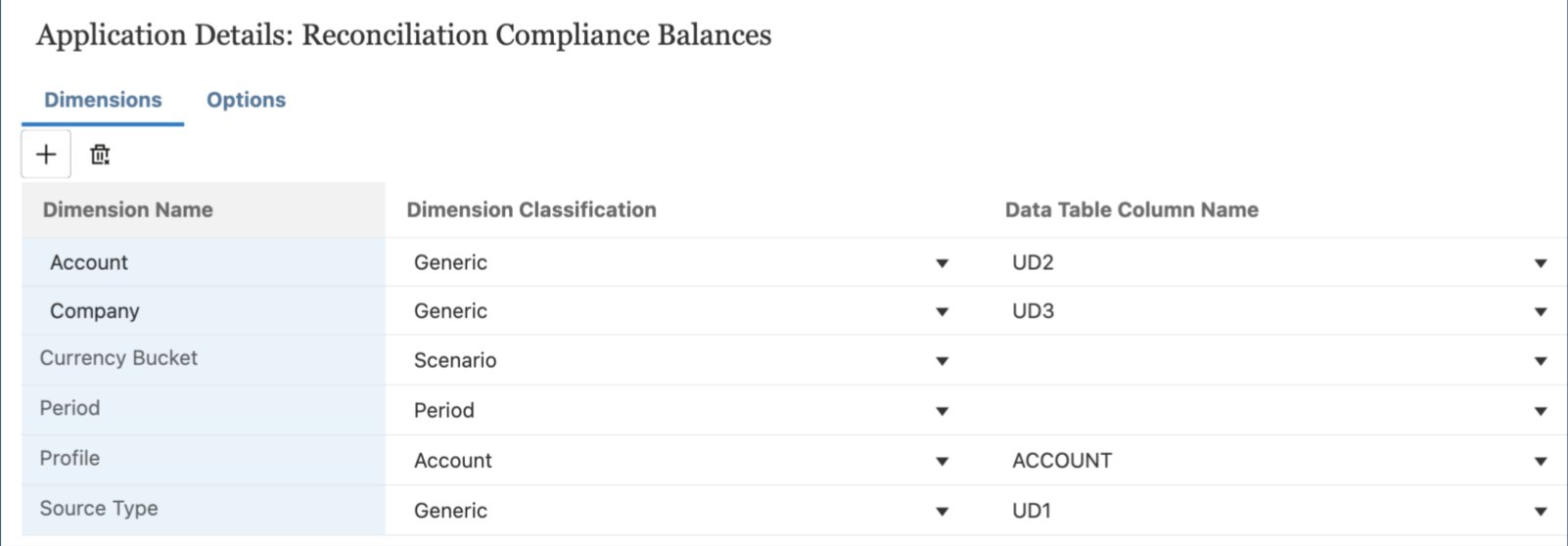
In the screenshot above, the Source Type is assigned to UD1 in the Account Reconciliation configuration. The following examples illustrate how to handle currency mappings using SQL:
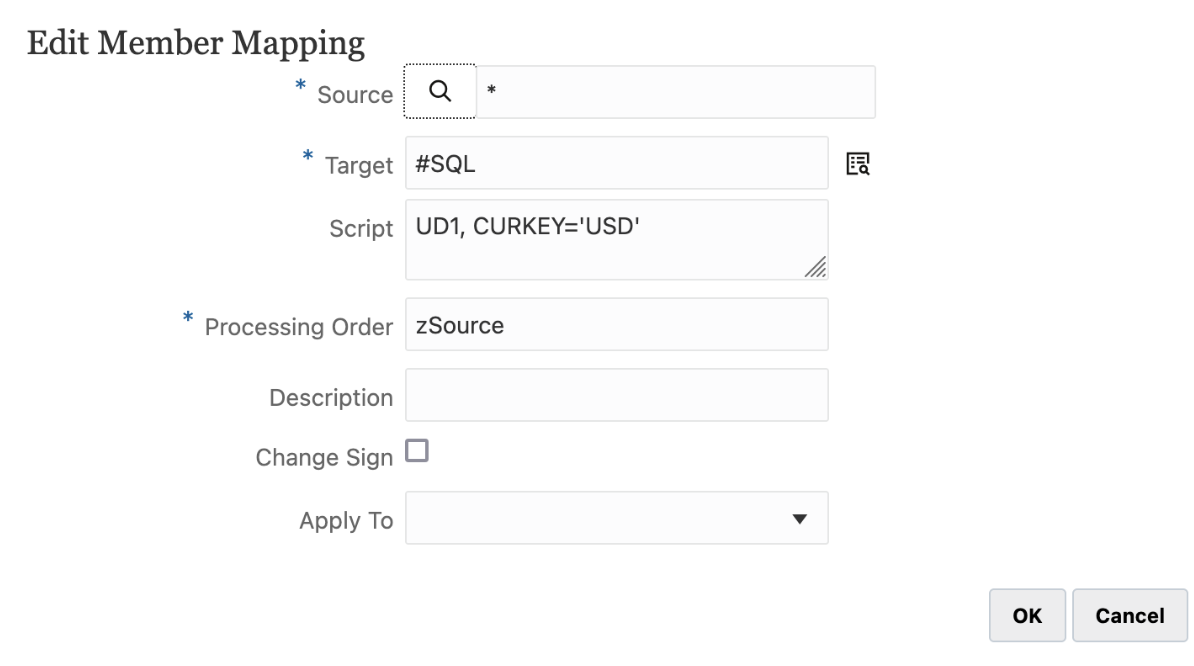
1. All currencies are USD:
UD1, CURKEY=’USD’
2. Currencies are based on Entity (UD2):
UD1,
URKEY = CASE
WHEN UD2 = ‘200’ THEN ‘CAD’
WHEN UD2 = ‘300’ THEN ‘GBP’
WHEN UD2 = ‘400’ THEN ‘EUR’
ELSE ‘USD’
END
Format Setup
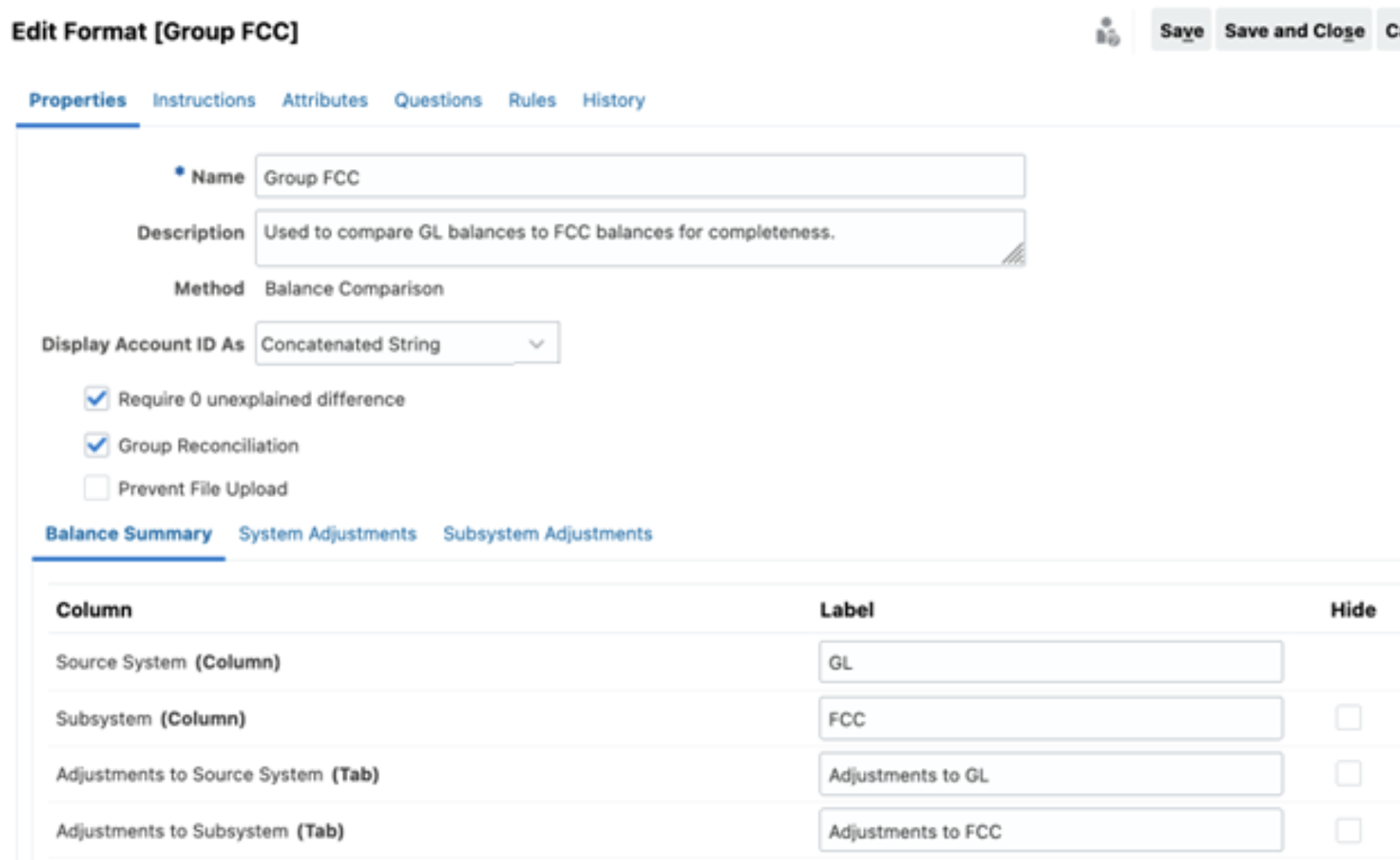
When managing reconciliations with balances sourced from Financial Consolidation & Close, it is essential to adopt processes that improve clarity for end users. One effective approach is to create a custom format tailored specifically for those reconciliations.
If all reconciliations source balances exclusively from Financial Consolidation & Close, a dedicated format might not be necessary, as the Source System will already be consistent across all reconciliations. However, in scenarios where multiple source systems (e.g., ERPs or subledgers) are involved, a specific format for Financial Consolidation & Close sourced balances can greatly enhance usability and transparency.
Key Customizations to Include in the Format:
- Update labels to clearly indicate that balances are sourced from Financial Consolidation & Close.
- Configure alert rules that automatically create an alert to identify variances for analysis.
- Create auto reconciliation rules to ensure data consistency across systems if creating a format for validating data between Financial Consolidation & Close and the ERP.
If data is loaded from Financial Consolidation & Close to compare balances with those in the GL, and discrepancies will only require reloading data from the GL to Financial Consolidation & Close, the Adjustments to Source System and Adjustments to Subsystem tabs can be hidden to simplify the interface for end users.
Auto-reconciliation rules can be added to the format to automatically close the reconciliation when balances match. If the balances change, the reconciliation will reopen, and notifications will be sent to the end users assigned to the reconciliation, prompting them to take appropriate action.
Once all filters are configured, proceed to the Options tab to fine-tune additional settings that control data behavior during the load process.
Most settings in the Options tab can be left at their default values. However, one key setting to consider is the Data Extract Option, which determines how data is retrieved from Financial Consolidation & Close. There are three available choices:
- All Data – Extracts both stored and dynamically calculated data for both Dense and Sparse dimensions.
- Stored Data Only – Extracts only stored data.
- Stored and Dynamic Calculated Data – Extracts stored and dynamically calculated values for Dense dimensions only.
The appropriate selection depends on the filtered data and how Financial Consolidation & Close dimensions are configured (Dense/Sparse).
If the integration requires pulling parent members or calculated data, the best practice is to select All Data to ensure that all relevant values are captured accurately, including dynamically calculated values at parent levels.
Variance Analysis Setup
Variance reconciliations provide a framework to review changes in balances over a specified period, such as month-over-month, quarter-over-quarter, or year-over-year.
The primary advantage of these reconciliations is the ability to centralize all variance explanations in one location, which can then be utilized for preparing an MD&A or other variance-related documentation. However, a downside of variance reconciliations is that they represent an additional set of reconciliations beyond the standard month-end process.
Variance reconciliations for Financial Consolidation & Close data can help compare consolidated balances across reporting periods. When setting up these reconciliations, it’s important to consider data granularity—whether to use summarized or level 0 data—and currency differences, such as parent versus entity currency. Since variance reconciliations are an additional layer beyond the standard month-end process, careful planning is needed to ensure the appropriate data is loaded.
Like the formats discussed earlier, the labels on variance analysis formats can be customized to indicate the Source System as Financial Consolidation & Close.
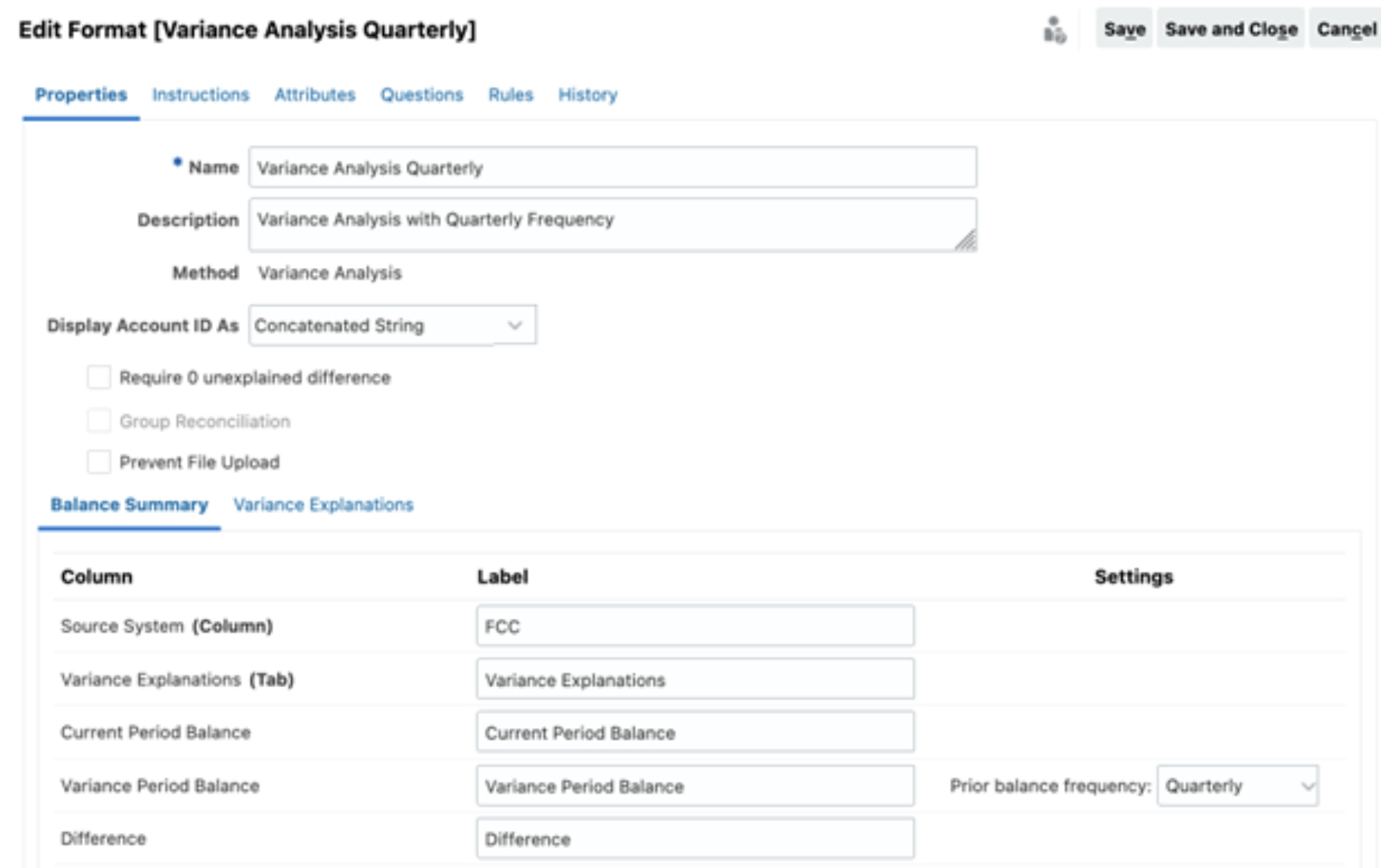
In addition to customizing format labels, attributes can be added to Variance Explanations transactions to capture additional details that enhance the explanation and reporting of variances. These attributes can include fields such as variance reason code, variance description, action plan, or other relevant information that provides deeper insights into the variance.
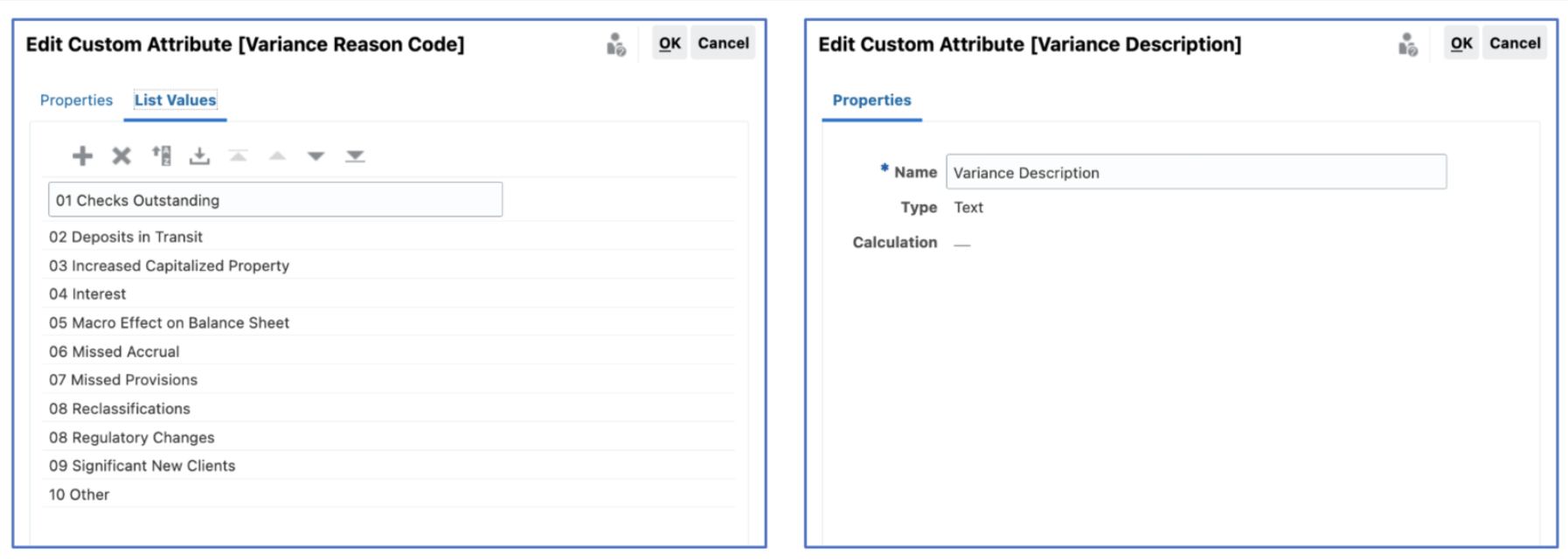
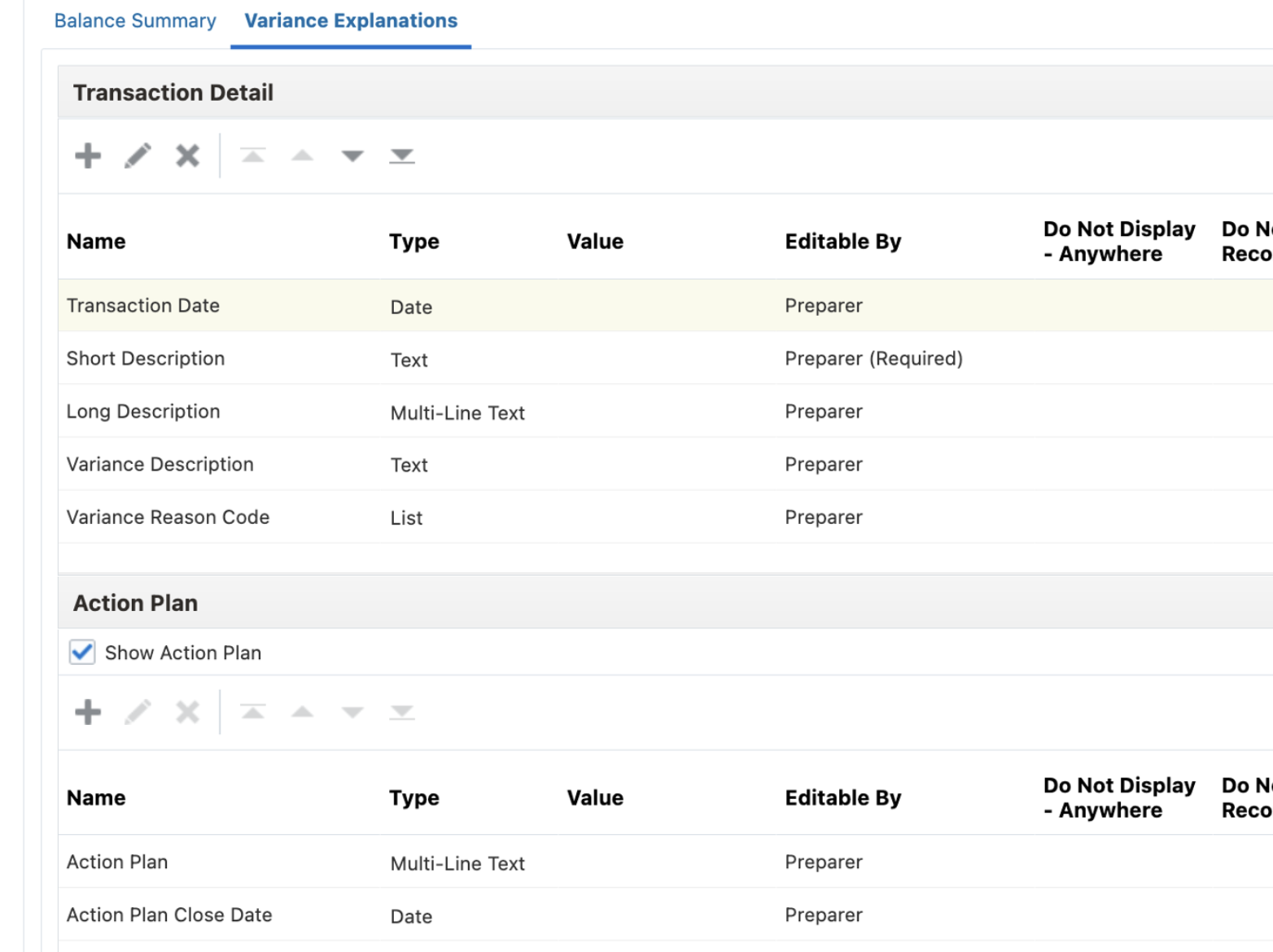
As explanations are entered, the associated transactions can be exported for further analysis or inclusion in reports. To streamline this process, additional columns can be added to the transactions screen to display key data points. The customized view can then be saved, allowing users to quickly access and consistently apply the same layout for future reporting needs.
This flexibility not only improves the efficiency of variance reporting but also ensures that critical information is readily available for stakeholders and audit purposes.

Using Financial Consolidation & Close to source balances in Account Reconciliation
By leveraging best practices such as selecting the appropriate data granularity, currency level, and dimension mappings, businesses can ensure a seamless data flow that aligns with their financial reporting needs. Proper setup of data integration, filters, and mapping options is crucial to capturing the right data while maintaining system performance and usability. Customizing reconciliation formats and variance analysis further enhances visibility and control, enabling stakeholders to make informed decisions. Ultimately, this integration empowers organizations to achieve a more accurate, automated, and insightful financial close process.
FAQs
1. Why integrate Financial Consolidation & Close with Account Reconciliation?
It aligns consolidated balances directly with reconciliations, reducing manual uploads, eliminating mismatches, and improving audit traceability. The result is a more automated and controlled close process.
2. Should reconciliations use level 0 data or post-consolidated balances?
Level 0 data is best for validating base balances against the ERP. Post-consolidated balances are better for variance analysis and reported financial comparisons since they include eliminations and ownership adjustments.
3. How does currency selection impact reconciliations?
Parent currency supports consolidated reporting and variance analysis. Entity currency supports local operational reconciliations. The right choice depends on the reporting objective.
4. What technical setup areas matter most?
Accurate dimension mapping, complete filters, proper data extract settings, and thoughtful handling of custom dimensions and currency logic are critical for reliable data loads.
5. How does this integration improve governance?
It centralizes reconciliations and variance explanations in one controlled environment, strengthening transparency, consistency, and audit readiness across the financial close.
Watch the AI World Series on YouTube!