
Importing BIP Reports
from Oracle Cloud ERP to Account Reconciliation
Maximizing the Value of the Unified Oracle Cloud EPM Platform
Part 2: Streamlining Your Financial Close
Importing data from Oracle ERP into Account Reconciliation helps automate and streamline the reconciliation process. One of the most effective ways to extract data from ERP is by leveraging Oracle Business Intelligence Publisher (BIP) reports. This document outlines the steps required to connect a BIP report to Account Reconciliation using Data Integration.
Note: This guide does not cover setting up BIP reports in Oracle Cloud ERP. It only explains how to connect a BIP report to Account Reconciliation to load balances for reconciliations.
Benefits
Process automation
Reduces manual effort by automating the extraction and import of data, freeing up resources for higher-value activities.
Enhanced accuracy
Ensures data integrity by pulling information directly from the source system, eliminating errors introduced through manual data handling.
Application scalability
Easily adapts to business growth by handling large volumes of reconciliation data without requiring significant rework or manual intervention.
Data timeliness
Enables scheduled data updates, ensuring reconciliations are performed with the most up-to-date information available.
Use Cases
Accounts Payable Reconciliations
Import the AP Trial Balance for comparison with General Ledger (GL) balances to ensure all liabilities are accurately reported.
Cash Reconciliations
Compare Cash Management data with GL account balances to identify and resolve discrepancies efficiently.
Fixed Asset Reconciliations
Validate consistency between Oracle ERP fixed asset data and fixed asset GL account balances to ensure the proper additions, disposals, and depreciation is recorded.
Key Considerations
Report Setup
Ensure the BIP report includes the correct data fields such as balances, transaction details, and relevant metadata. Align the report structure to the requirements for import into Account Reconciliation (column value length, number of columns, data format, etc.)
Report and Application Security
Properly configure user roles and permissions in both Oracle ERP and Account Reconciliation to safeguard sensitive financial data.
Report Performance
Optimize the BIP report to avoid long processing times and potential system slowdowns. Consider using filters and parameters to limit the volume of data extracted to only include what is required for reconciliation.
Understanding the Difference Between ESS and BIP Execution
When integrating a BIP report with Account Reconciliation, it is essential to understand the execution modes available:
BIP Report Execution (Synchronous Mode)
- This method executes the BI Publisher report directly within Oracle ERP Cloud. Since it runs synchronously, there is a timeout limit of approximately five minutes. This approach works best for small data sets or fast queries.
ESS Job Execution (Asynchronous Mode)
- Alternatively, you can run the BI Publisher report as an Oracle Enterprise Scheduler (ESS) Job. This asynchronous method avoids timeout restrictions, making it ideal for large data extracts or long-running queries.
Note: BI Publisher reports must be configured with a CSV output format by default.
Process Description for Registering ESS Jobs
The following is a high-level description of how to create BIP report extracts as ESS jobs.
- Define the Data Extract SQL.
- Create the data model for the BI Publisher report extract.
- Create the BI Publisher report extract.
- Create the ESS job.
- Create an integration in the Account Reconciliation using the BI Publisher report extract as the source.
Note: If using an existing report, like the Accounts Payable Trial Balance, it is best practice to make a copy of the report to use for loading.
For detailed information on each of the above steps, refer to the Process Description for Registering ESS Jobs documentation.
Information Required from the BIP Report
To configure the integration, you need the following details:
- BIP Report Name with Full Path – e.g., /Shared Folders/Custom Reports/AP_Trial_Balance.xdo
- ESS Job Path – e.g., /oracle/apps/ess/custom/AP_TB_ESS_JOB
- ESS Job Name – e.g., AP_TB_ESS_JOB
- Parameter Listing and Data Table Names – e.g., LEDGER_ID, GL_ACCOUNT, BOOK
This information can be found in the Report Properties and by reviewing the report in the Job History in Oracle ERP Cloud.
Account Reconciliation Application Setup
Create the Oracle Cloud ERP Connection
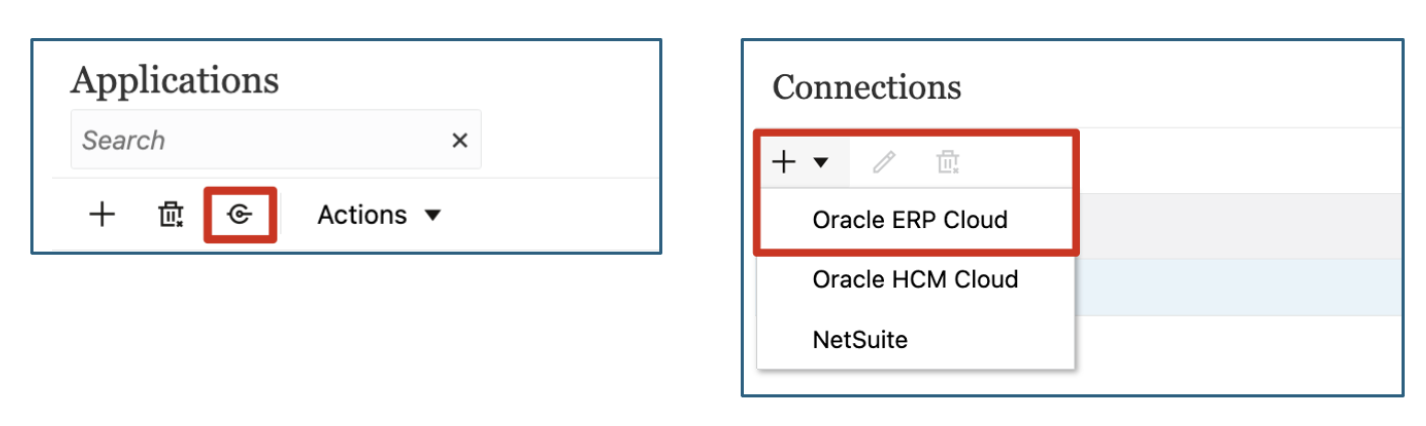
A connection to the Oracle ERP Cloud in Account Reconciliations is made by navigating to Application > Data Exchange > Actions > Applications and clicking the Configure Connections icon. In the Connections window, click the + icon to add a new connection. Select Oracle ERP Cloud from the dropdown.
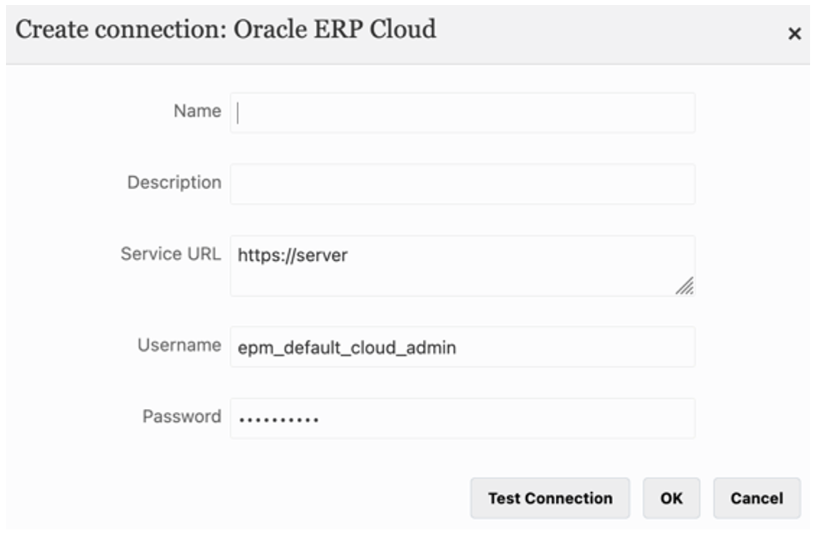
Enter the parameters for the connection, including Name, Description, Service URL, Username, and Password.
Click Test Connection to ensure the parameters are set correctly. If successful, click OK to continue.
Note: Best practice is to create a dedicated system administrator account (username and password) specifically for integrations and automated connections, rather than using an individual named user.
This approach enhances security, minimizes dependency on personal accounts, and ensures continuity of operations. The system admin account should be configured with a non-expiring password to prevent potential data load failures or disruptions caused by password expiration.
Create the Oracle Cloud ERP (Custom) Application
Before creating the application in Account Reconciliation, the CSV file produced from the BIP report must be uploaded to the File Browser in Data Exchange. Navigate to Application > Data Exchange > Actions > File Browser. The file can be uploaded to any of the folders in the File Browser.
Best practice is to add a folder to the inbox specifically dedicated to the integration. To add a new folder, double click on inbox, click on the down arrow next to inbox, and click Create Folder.
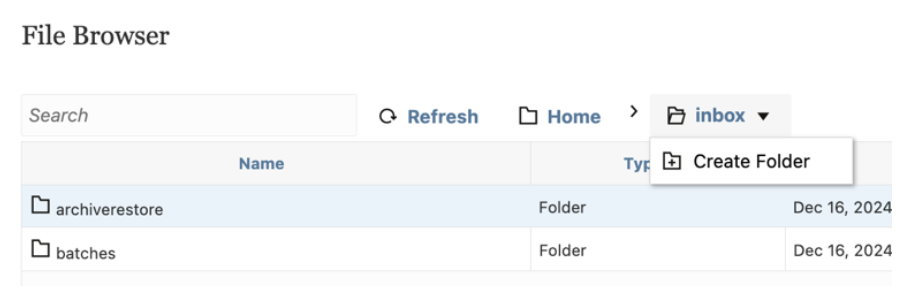
Click the Upload button to add the CSV file to the new folder.
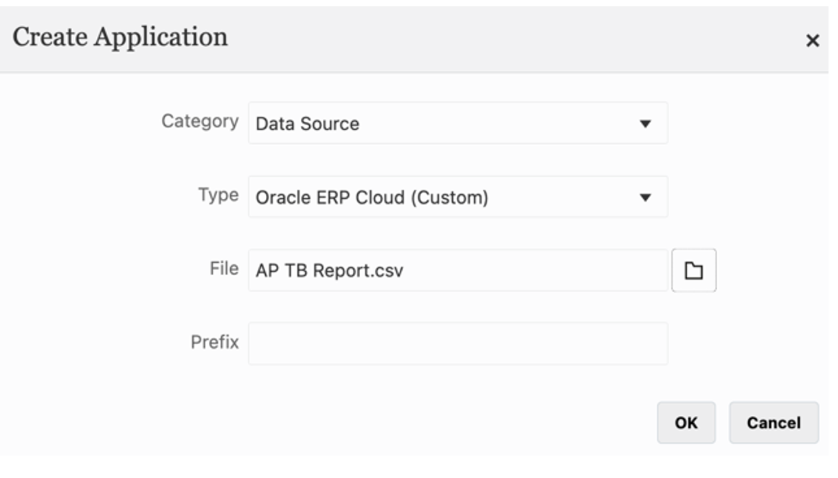
Next, create the application by navigating to Application > Data Exchange > Actions > Applications. Click the + icon to add a new application.
The application category is Data Source, and the Type is Oracle ERP Cloud (Custom). Click on the file icon to select the saved CSV file.
Note: The application name is automatically derived from the CSV file name. Ensure the file name accurately reflects what the application should be called, is easily understood by other users, and follows a consistent naming convention.
The application can be created with an optional Prefix. Click OK to create the application.
Add Options to the Application
BIP reports may require additional parameters, such as LEDGER_ID or GL_ACCOUNT, which must be defined for the report to run successfully. These parameters help filter data accurately and ensure the report retrieves the correct information.
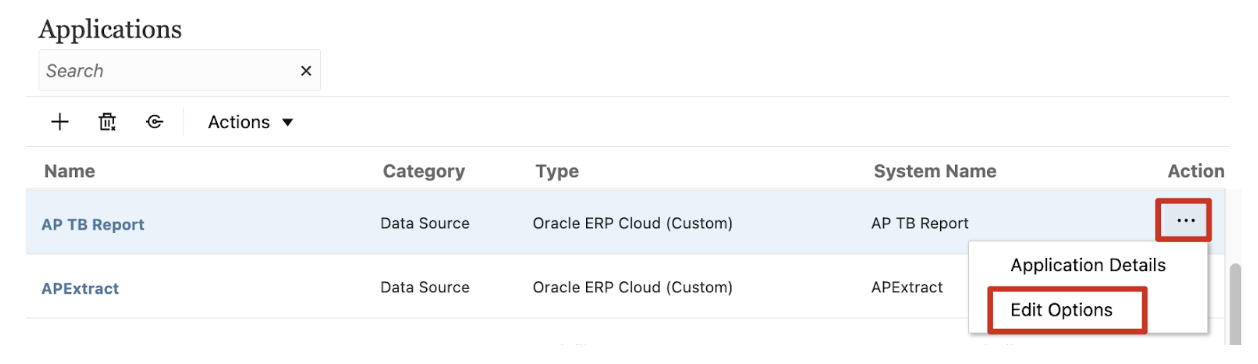
These additional parameters are added to the Options of the application. To add options, click on the ellipsis for an integration in the Actions column on the Application window. Click Edit Options.
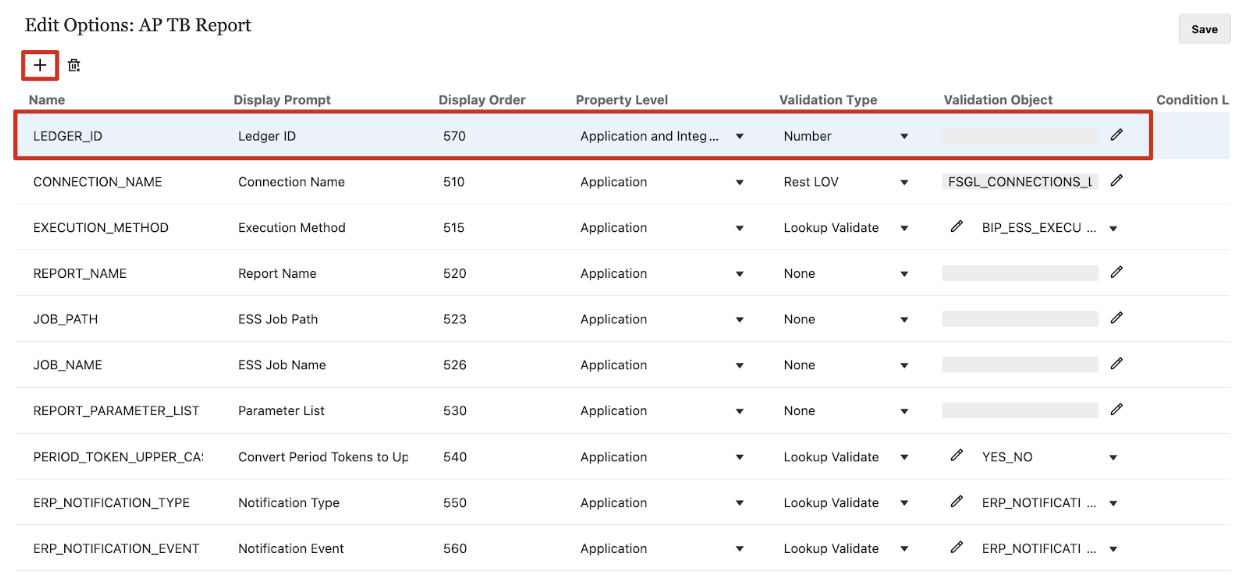
Click the + icon to add an option. Enter or select the required values for each new option, including Name, Display Prompt, Display Order, Property Level, and Validation Type. Click Save to save the updated option.
Repeat the steps to add additional options when needed.
Updating the Application Options
Once the additional options have been added to the application, the option values can be defined. The options required differ slightly depending on how the report is generated – either as a direct connection to the BIP report or as an ESS job.
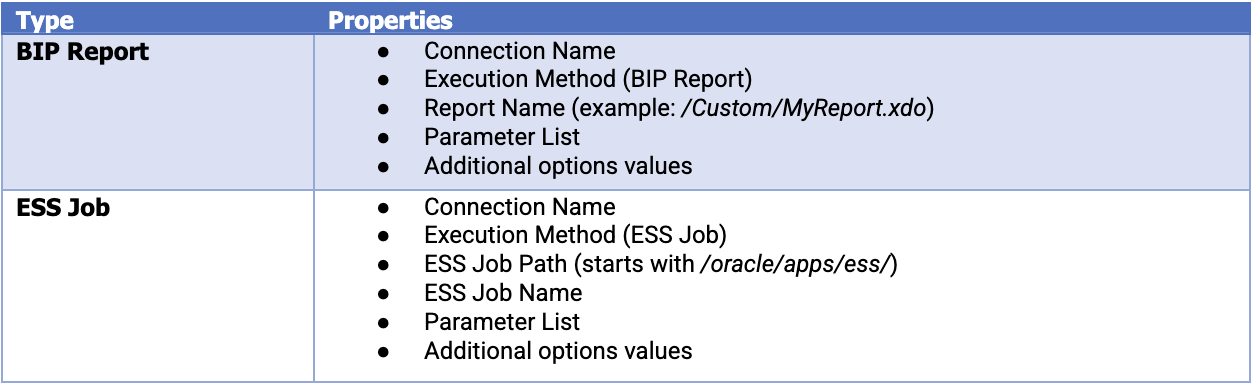
To update the application options, click on the application name and then click the Options tab.
Examples of the setup of each type are shown in the following screenshots.
ESS Job
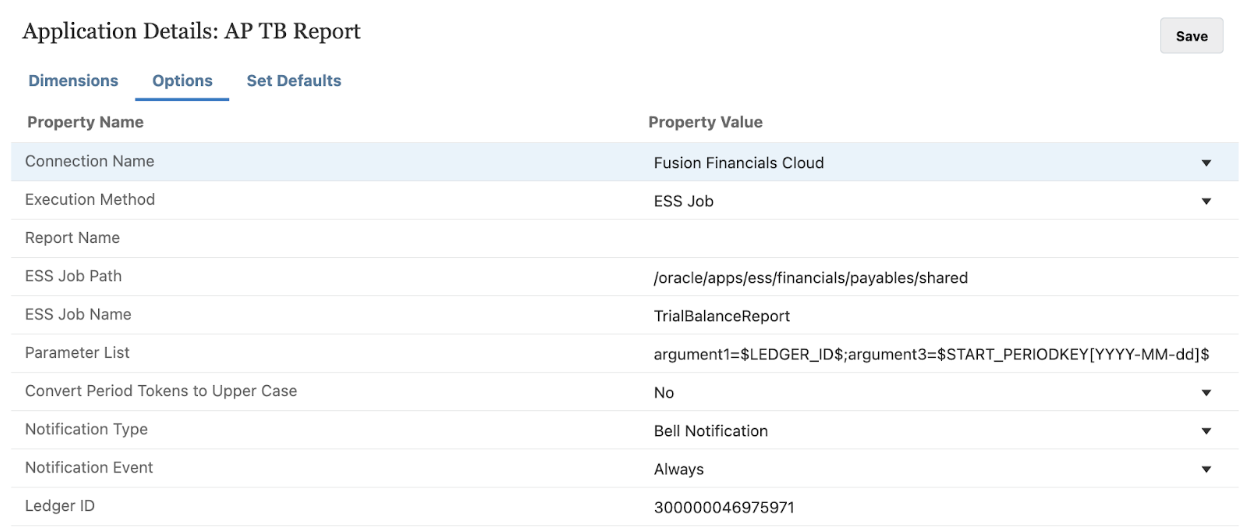
Note: In this example, the date used to run the ESS job in Oracle ERP Cloud report is formatted as YYYY-MM-dd, e.g., 2025-01-01. The additional option, Ledger ID, has a default value defined. This default value can be overwritten as needed in the integration definition in Account Reconciliation.
BIP Report
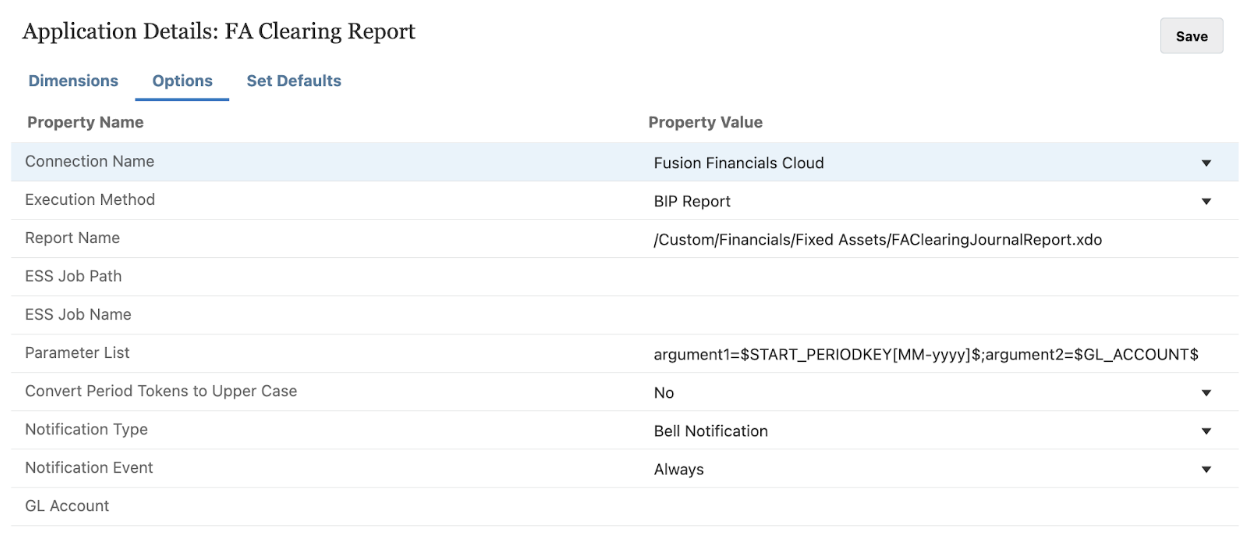
Note: In this example, the date used to run the BIP report in Oracle ERP Cloud report is formatted as MM-yyyy, e.g., 01-2025. The additional option, GL Account, has been left blank. Leaving the option blank mimics selecting All when running the report in Oracle ERP Cloud.
Create a Data Integration
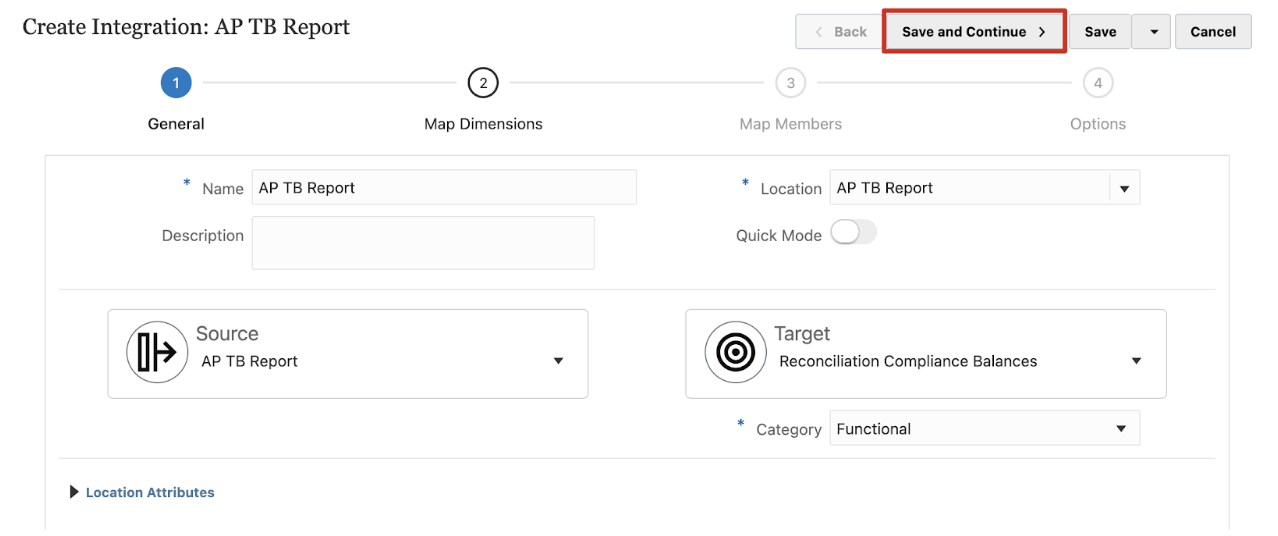
The next step is to create the data integration to load data to Account Reconciliation. To create the integration, navigate to Application > Data Exchange and click the + icon to add a new integration.
Enter a Name and enter or select a Location. If a new location is created, the source and target must be defined. When the integration is saved, the system creates the location automatically. If an existing location is selected, the system populates the source and target automatically, and the details cannot be changed.
Next, choose the appropriate Category (currency bucket) for the integration. The selected category determines which currency bucket the data will be loaded into for the reconciliations.
After entering or selecting all required options, click Save and Continue to proceed.
Map Dimensions
In the next screen, the file type, delimiter, and source system (BIP Report) columns are mapped or translated to their corresponding values in the target system (Account Reconciliation). Proper mapping ensures that data is correctly categorized and available for reconciliation purposes.

The Import Format name defaults to the name of the integration but can be modified to align with company naming conventions or specific requirements. Import Formats can also be reused across multiple integrations when the same definition is needed for different data loads.
Type determines what kind of data will be in the file. The options most relevant to this integration are:
- Delimited – Numeric Data – If the file contains only account balances, this option is preferable to prevent potential issues with non-numeric characters.
- Delimited – All Data Type – if the file includes descriptive fields, choose this type to ensure text is accurately imported and not misinterpreted or truncated.
Delimiter defines the character used for delimiting columns in the output file. Multiple options exist, but the BIP report output file is set to CSV as the default, so Comma should be used.
For each Account Reconciliation dimension, use the Source Dimension dropdown to select the corresponding report column. This step aligns data between the sources, ensuring accurate transformation and processing. Additionally, source or target expressions can be applied to manipulate data as needed – such as adding constants, extracting values using substring, or implementing zero suppression.
Commonly used source expressions include:
- Delimiter (e.g., “-”) – Helps concatenate multiple fields into the Account ID.
- Substring (e.g., substr(ACCOUNT, 0,3)) – Extracts a value from a string of characters and includes the source dimension, starting position, and ending position.
- NZP – Ensures that zero values are included in the data load, which is crucial for reconciling accounts that may have zero balances.
To add a source or target expression, click the gear icon next to the dimension row and select the desired expression. This provides flexibility in handling data, such as concatenating fields, applying conditional logic, or formatting values to meet business requirements.
When the integration is initially created, the mapping table includes only the profile segments, source system, and a single profile row. However, to fully support the reconciliation process, additional rows are required, including a currency row and additional profile rows to construct the Account ID.
Additional rows can also be added to include columns from the BIP report that will only be used for research during the reconciliation process.
To add these additional rows, click the gear icon and select the appropriate option:
- Add Currency – Adds a currency row to facilitate multi-currency reconciliations.
- Add Attribute – Adds attribute rows to store supplemental details for reconciliation.
- Add Dimension Row > Profile – Adds extra profile rows to help define complex Account IDs.
In most cases, the Account ID is constructed using multiple profile rows. For example, if the Account ID follows the format Entity-Account, it would require three profile rows to map each segment correctly. The sequence of profile rows should always align with the defined profile segment order to ensure data consistency and accuracy.
Refer to the provided screenshot for an example of how to properly structure profile rows to meet reconciliation requirements.
If additional data is needed from the columns in the report but is not configured as profile segments, consider adding these dimensions as attributes using the Map Dimensions option.
For example, if an Account Reconciliation application is set up with profile segments for Company and Account, but additional fields like Source Transaction Type and Source Transaction Number are required to support reconciliations, these fields can be added as attributes in the data load. The values will then be displayed when an end user clicks the Ending Balance link in a reconciliation.
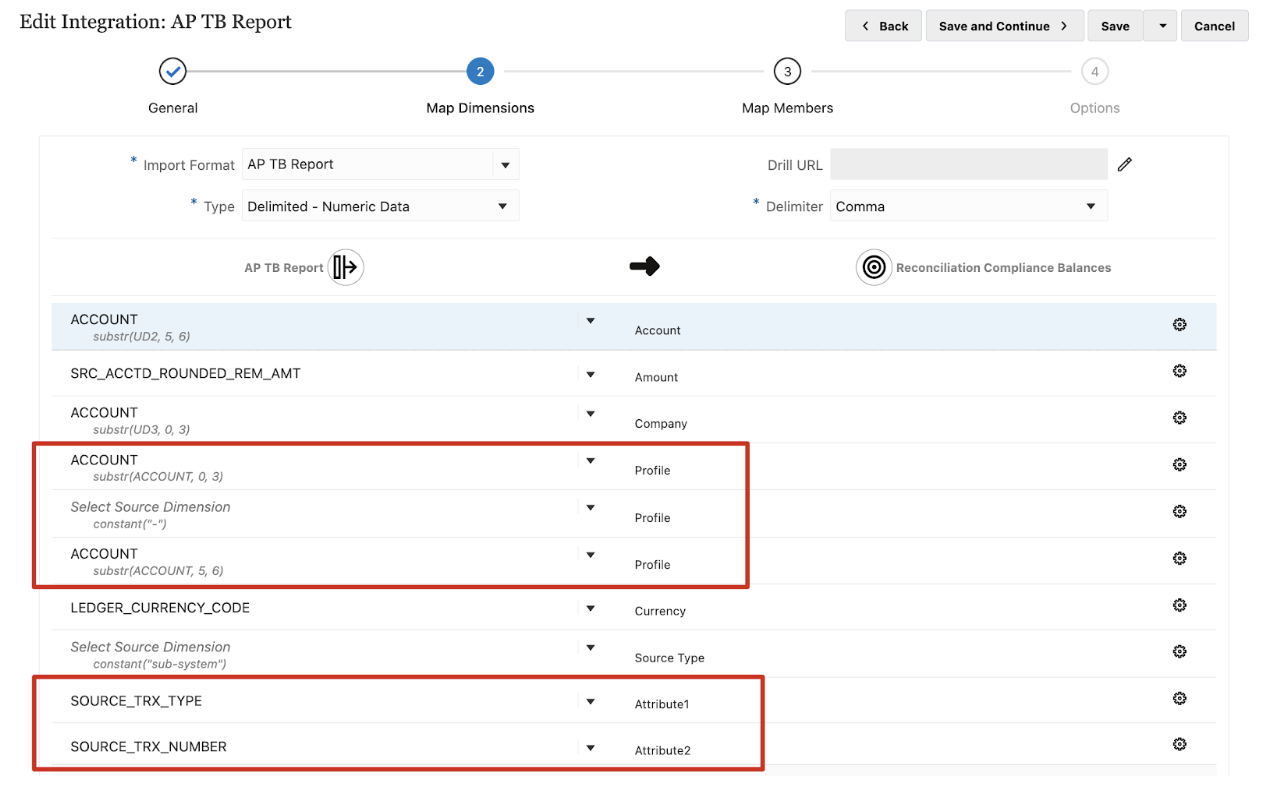
Note: Adding extra data fields to the integration increases the amount of information displayed in the Ending Balances window. Ensure that these fields are necessary and provide meaningful value to the reconciliation process. Adding too many attributes can lead to an overwhelming amount of data, especially if the number of data lines supporting a balance grows significantly.
View or Update Options
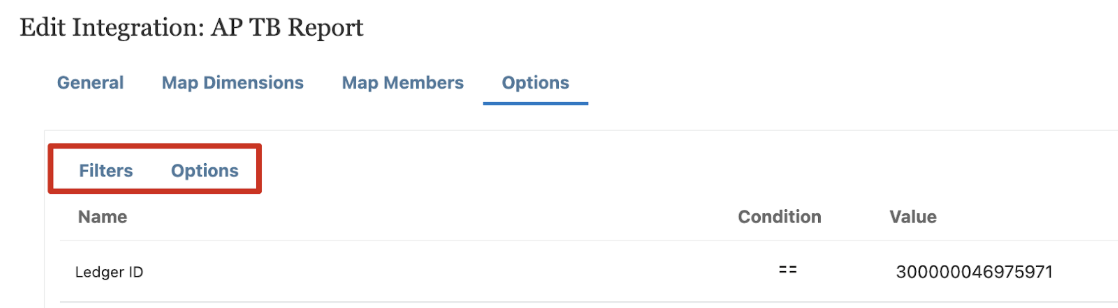
The Options screen in the data integration setup consists of two tabs: Filters and Options.
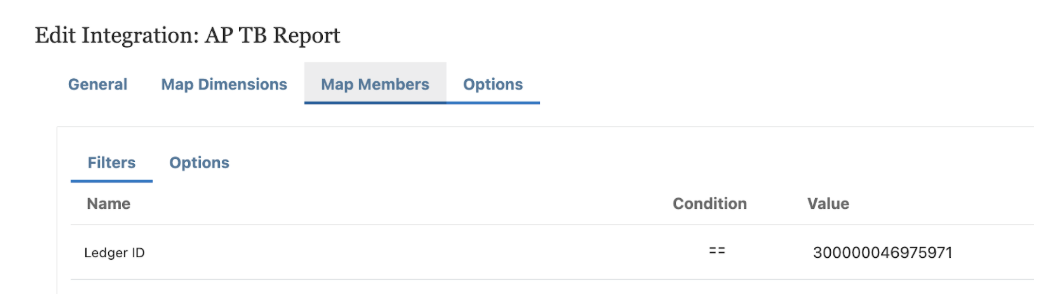
- Filters contain the additional options set up when defining the application. If a value was defined when the application was created, it can be overwritten here. In the screenshot example, the Ledger ID can be overwritten for this integration to pull from a different ledger.
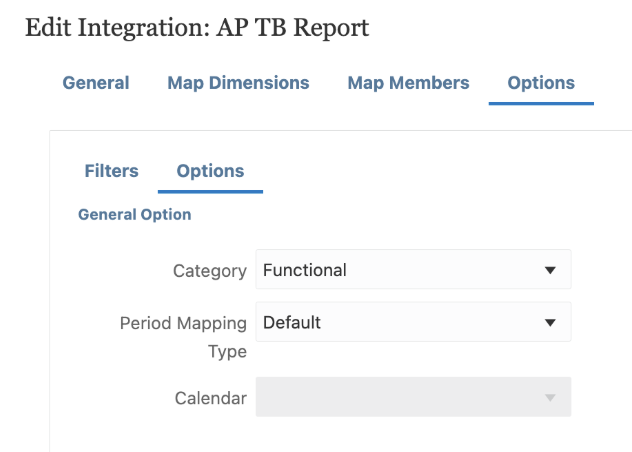
- Options define additional parameters that control how the data is processed and transferred. In the example integration, the Category (currency bucket) and Period Mapping Type can be changed.
Map Members
Member mappings are used to identify how source members translate to target members. Mappings are based off the source member from the file or direct connection. Member mappings are referenced during the data load, enabling Data Integration to determine how the data is loaded to the target application. They define relationships between source members and target dimension members within a single dimension. Member mappings must be created for each target dimension, regardless of if they are 1:1 or contain transformations.
There are five types of member mappings:
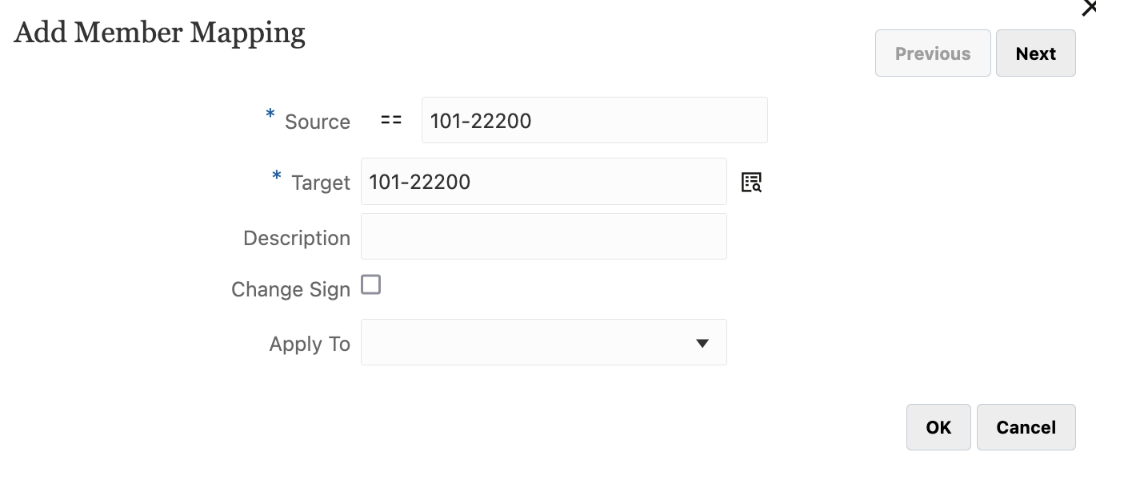
- Explicit – The source value is matched exactly and replaced with the target value.
- Between – The range of source values is replaced with a single target value.
- In – Enables a list of non-sequential source values to be mapped to one target value.
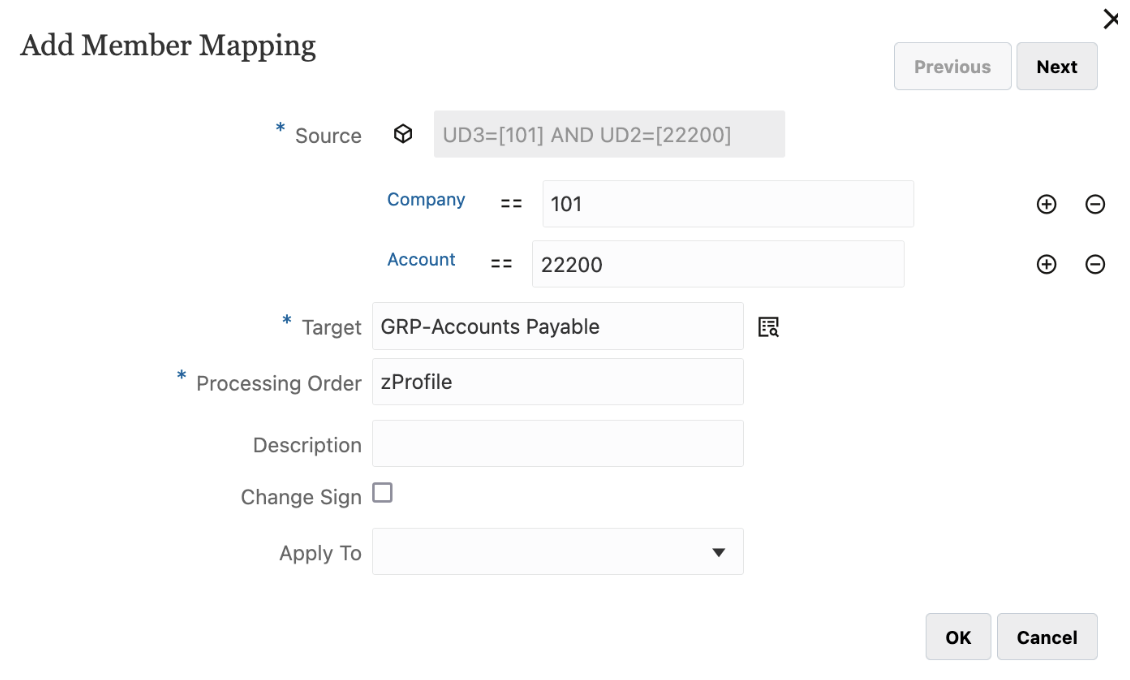
- Multi-Dimension – Enables member mappings to be defined based on multiple source column values.
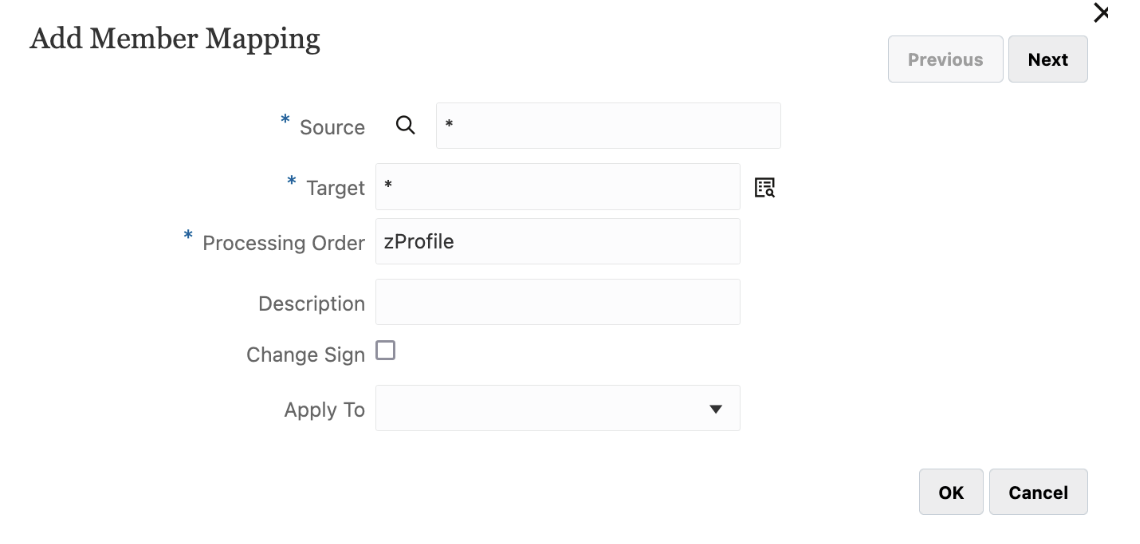
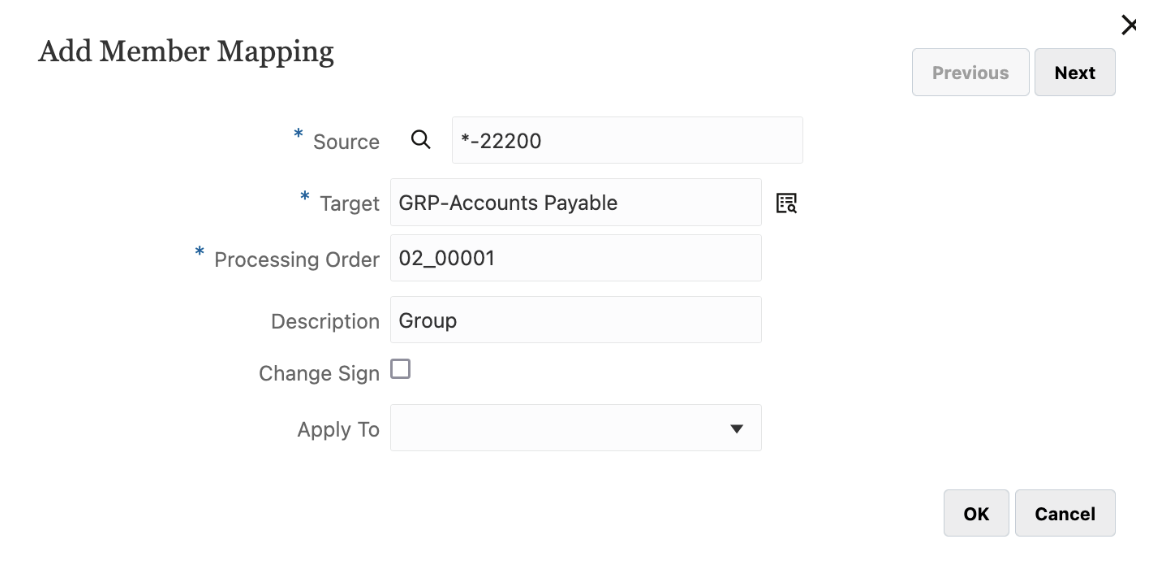
- Like – Like mapping utilizes wildcards to facilitate mapping. A question mark (?) is used to represent any one single character. A star (*) is used to represent any number of characters. The Rule Name on the Like mappings is used to determine the order in which the Like mappings are applied.
Note: An additional map type, Regular Expression, is available for Quick Mode integrations only.
Data Integration processes the member mappings in the order above. The speed of the mappings is also determined by the order, with Explicit being the fastest and Like mappings taking longer due to the use of wildcards.
The choice of mapping type depends on the complexity of the data, speed of data loads, and the long-term maintenance of Data Integration. Explicit mappings provide more control over the data but can increase maintenance over time. Like mappings are quicker to set up and require far less maintenance but can become outdated as the complexity of data grows.
Ease of Setup
- Explicit – setup of Explicit mappings can be time consuming.
- Like – wildcard mappings are easily set up based on established criteria.
Speed of Data Loads
- Explicit – faster data loads due to 1:1 mapping and only requires one pass through of the data.
- Like – for each Like rule, the data is evaluated for a match. As the number of Like rules increases, the number of pass throughs is increased, causing the data load to slow over time.
Long-Term Maintenance
- Explicit – each time a new member is added, a new Explicit mapping is required. This can increase maintenance required for Data Integration.
- Like – using wildcards, the mappings are dynamic, which reduces the need for maintenance. The downside is the evaluation of the Like mappings to ensure that there is no need for exceptions to the Like rules.
The most common approach to Member Mappings is a hybrid approach using both Explicit mappings where detailed mappings are needed, and Like mappings to capture anything not specifically defined.
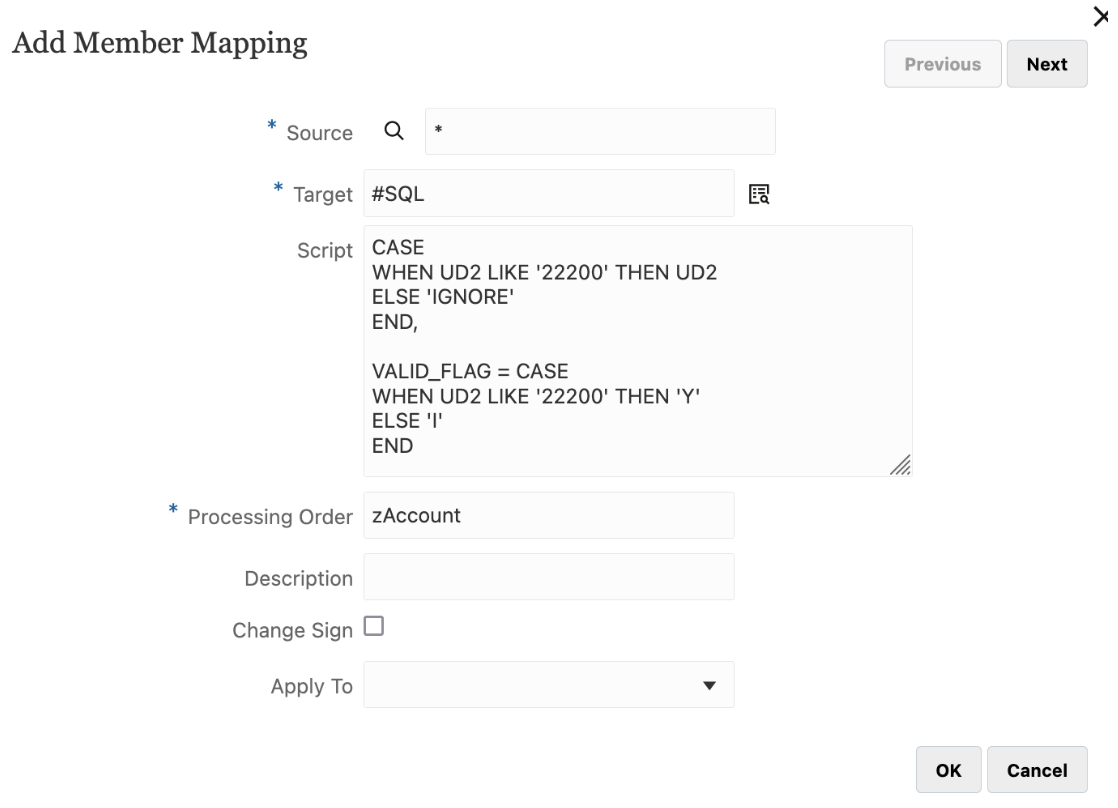
In addition to the map types, SQL scripts can be used to transform data. SQL scripts for * to * Like mappings run faster than using the Like mapping as the data is processed during one pass for a SQL script as opposed to multiple passes using the Like map.
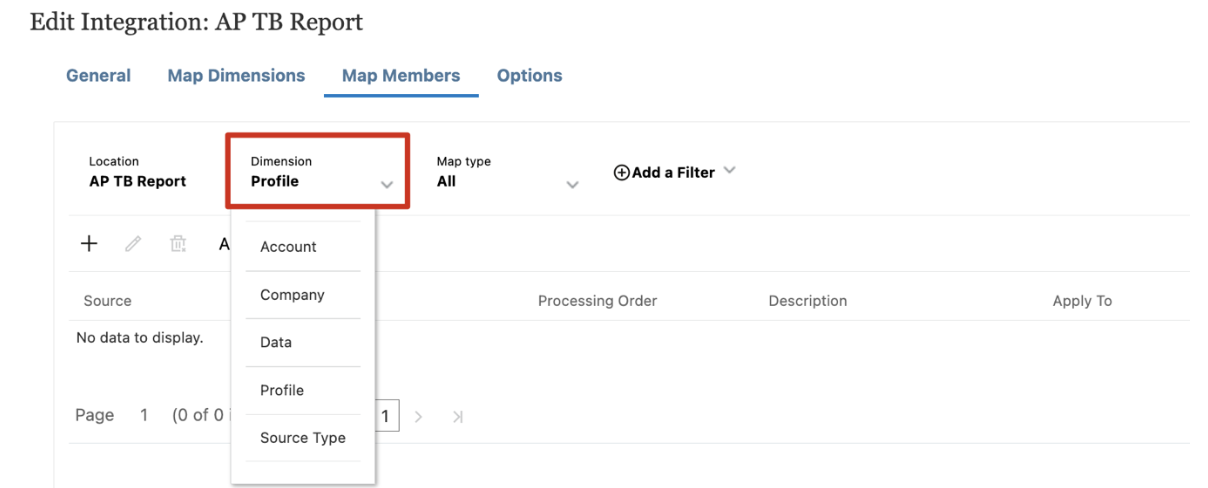
Before adding any mappings, make sure the correct dimension is selected. Click the Dimension drop-down and select the appropriate dimension. Once the dimension is selected, click the + icon to add a new mapping.
In the Add Member Mapping window, click the == icon to select a mapping type.
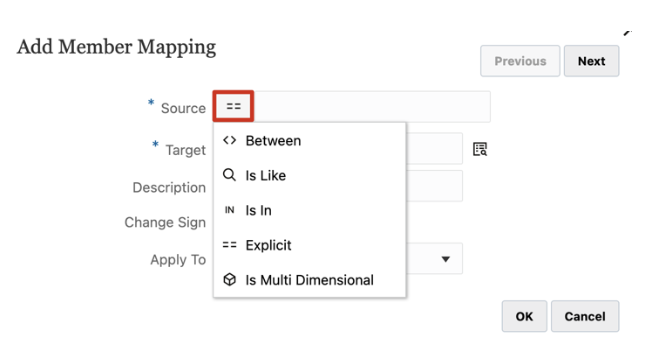
When defining a member mapping, the following information is required:
- Source and Target values: The source value and its corresponding target value.
- Processing order (for all mapping types except Explicit): Determines the sequence in which mappings are applied within a mapping type. Mappings are processed first in numerical order, then in alphabetical order.
- Multi-Dimensional mappings: The source dimension and corresponding values must be specified.
Additionally, you can include optional details in the mapping:
- Description: A brief explanation of the mapping.
- Change Sign: If the balance sign should be flipped, select this option.
Example Mappings
Explicit Mapping
Multi-Dimensional Mapping
Like Mapping – * to * Mapping
Like Mapping – SQL Mapping
Like Mapping – Wildcards
Format Setup
Reconciliations involving subsystems are typically set up using the Balance Comparison method, which enables a direct comparison of the balances in the report against the GL or other data sources. This approach ensures accuracy and consistency between different systems.
To enhance usability and transparency for end users, it is a best practice to create specific formats tailored to each BIP report source. This customization not only improves clarity but also streamlines the reconciliation process. For example, when balances are sourced from both the General Ledger and a BIP report, it is beneficial to create separate formats for specific areas like Accounts Payable, Fixed Assets, or Cash. Doing so provides clear distinctions between the different data sources, making it easier for users to understand and navigate the reconciliation.
Key Customizations to Include in the Format:
- Update Source System and Subsystem balance labels to clearly indicate the source of the balances on the Summary page of the reconciliations. For instance, labels could specify “AP Subledger,” “Fixed Assets,” or “Cash.” This ensures that users can easily identify which report or subsystem is being referenced during the reconciliation process.
- Create auto reconciliation rules that automatically close the reconciliation process when the General Ledger and BIP report balances match. This reduces manual intervention and helps streamline the reconciliation workflow.
- Adjust labels for Adjustments to Source System and Adjustments to Subsystem to reflect the specific application or subsystem the adjustments pertain to. This gives users more context, making it easier to understand where the changes are coming from and why they are necessary.
If auto-reconciliation rules are applied and the reconciliation closes but the balances change afterward, the reconciliation will automatically reopen. Notifications will be sent to the end users assigned to the reconciliation, alerting them of the changes and prompting them to take appropriate action. This feature ensures that users are always aware of any updates or discrepancies that require attention, maintaining a smooth and responsive reconciliation process.
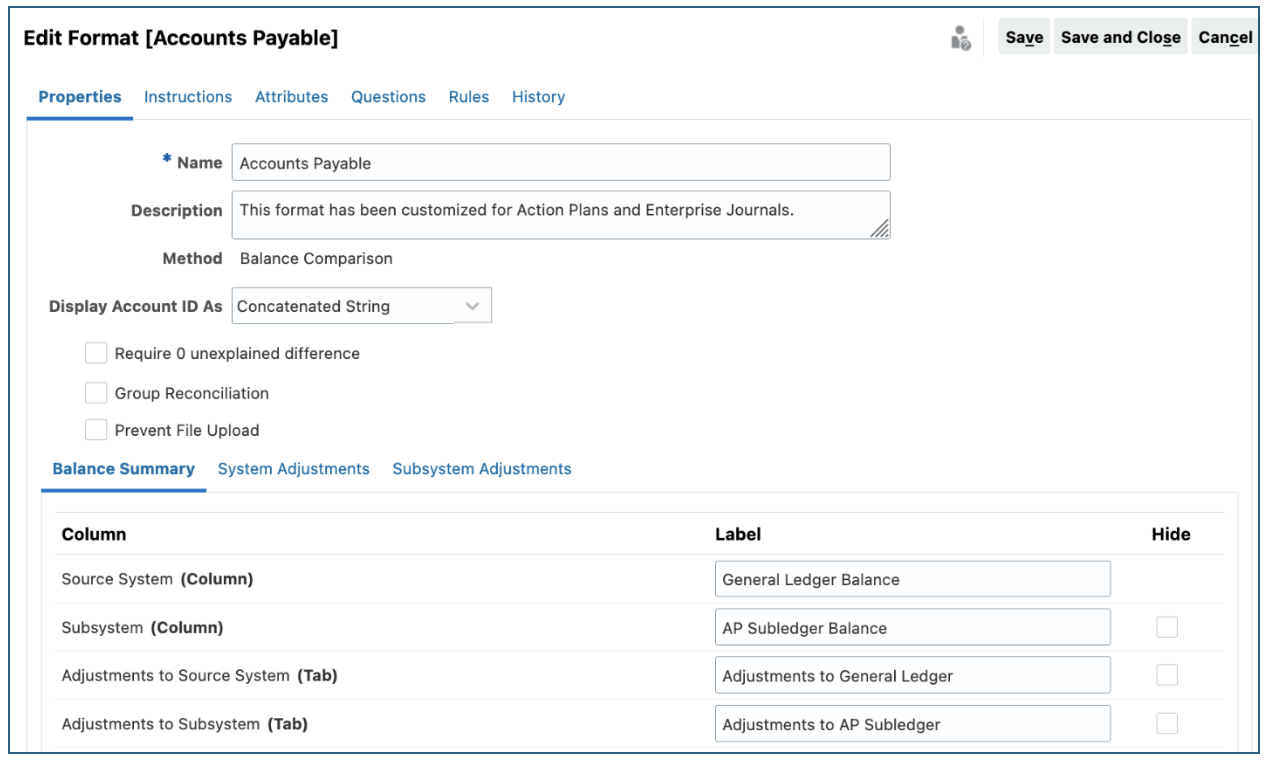
Summary
Connecting a BIP report from Oracle ERP to Account Reconciliation is a powerful way to automate reconciliations and ensure data accuracy. By following these steps, you can streamline data integration and improve your financial close process. Proper setup and monitoring will help you achieve a seamless connection that supports your reconciliation objectives.
FAQs
1. What are the main benefits of importing BIP reports into Account Reconciliation?
It automates data extraction from ERP, reducing manual effort and errors while improving data accuracy, timeliness, and scalability for reconciliations.
2. When should you use BIP report execution vs. ESS job execution?
BIP report execution is best for smaller, fast-running data extracts due to timeout limits. ESS jobs are better for larger datasets or longer queries since they run asynchronously without time constraints.
3. What setup elements are critical for a successful BIP integration?
Key areas include properly structured BIP reports, accurate parameter configuration (such as ledger or account filters), secure connections, and optimized report performance to ensure reliable and efficient data loads.
4. How does dimension mapping impact reconciliation accuracy?
Dimension mapping ensures that source data from BIP reports aligns correctly with target reconciliation dimensions. Proper mapping, including handling attributes and profile segments, is essential for accurate data transformation and reporting.
5. What role do member mappings play in data integration?
Member mappings define how source values translate to target values during data loads. Using a combination of explicit and rule-based mappings helps balance accuracy, performance, and long-term maintenance.
Watch the AI World Series on YouTube!